

SwitchX is available exclusively on Beeble (Cloud app). It is not
available in Beeble Studio.
This page covers SwitchX 2.0, selectable from the Model dropdown in
the input panel. The default model is SwitchX 3.0; 2.0
remains available for longer shots (up to 480 frames) and its Camera
Tracking On/Off control.
Source Footage
Source quality carries into the output, so feed SwitchX the highest-quality source you have. Native ProRes ingest is supported: upload your ProRes 422 (Proxy, LT, 422, HQ).mov master directly, up to 4.5GB.
Alpha Masks
The alpha mask is how Source-Locked Rendering works: it tells SwitchX exactly what to lock to your source and what to generate.- White in the alpha (1): kept from your original footage, frame for frame, and only relit and restyled to blend into the new environment.
- Black in the alpha (0): completely generated from your prompt and reference images.
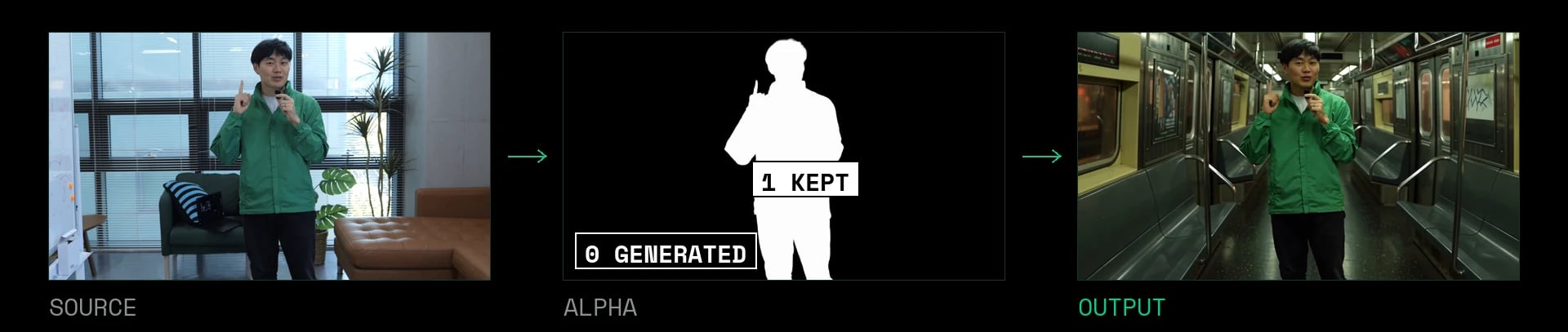
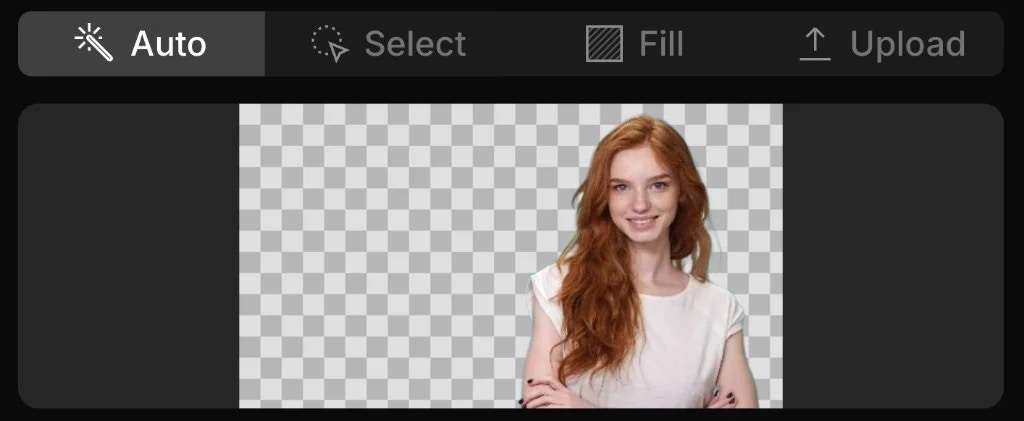
Auto Mode
Best for: Standard background replacements, relighting a subject, and
virtual production.
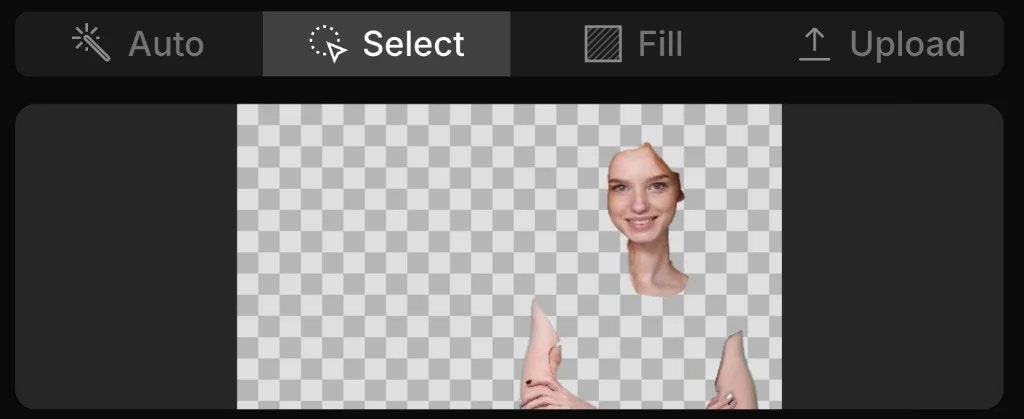
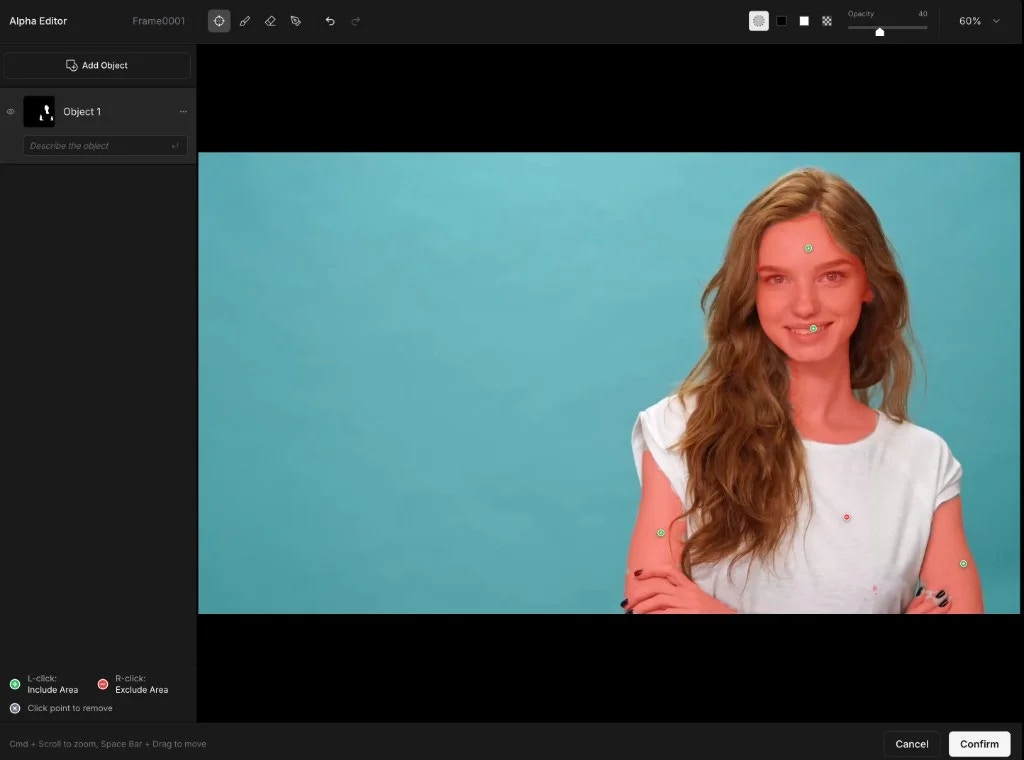
Select Mode
Best for: Precision control, changing specific elements (e.g., changing
clothes while keeping the face and hands intact), and advanced inpainting.
Fill Mode
Best for: Complete scene relighting and restyling.
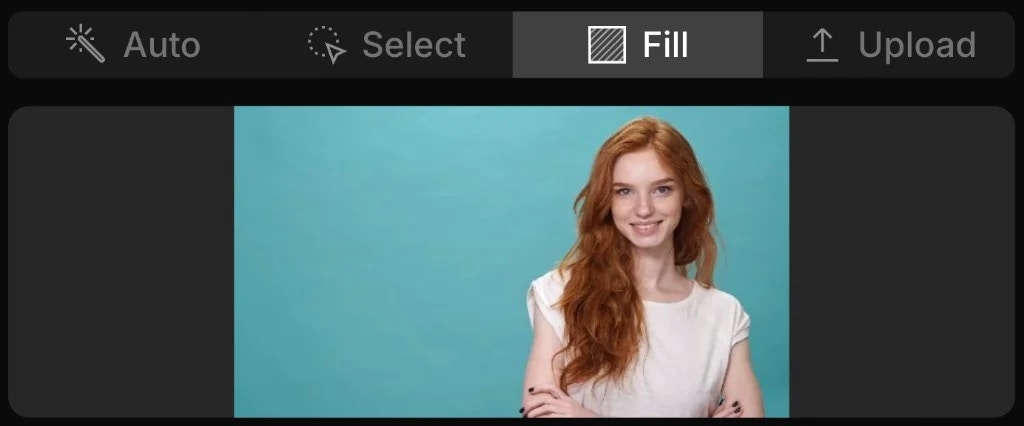
Upload Mode
Best for: VFX professionals using external compositing software.
Camera Tracking
SwitchX 2.0 supports camera tracking natively: the engine tracks the camera motion of your source footage and applies it to the newly generated environment. Control it under Advanced settings:- On (Follow Source): the default. The generated environment follows your source’s camera motion.
- Off (Ignore Source): the generated environment ignores the source’s camera motion. Use this when you want the new background to stay stable regardless of how the camera moves.
Truck (Lateral Tracking)
The camera travels sideways with the subjects — the generated street scrolls past with the source’s speed and parallax.Source
SwitchX 2.0
Pan (Follow)
The camera swings to follow the bike through the corner — the generated night circuit stays locked to the move even at race pace.Source
SwitchX 2.0
Push-in (Dolly)
The camera pushes forward past the foreground shelf — the generated aquarium keeps the same approach and parallax.Source
SwitchX 2.0
Fast Motion
SwitchX 2.0 holds detail through fast movement — lip sync, dance, gesture — where video models tend to smear or drift off the performance.Lip Sync
Every syllable lands after the switch from greenscreen to jungle — wardrobe and world change, the mouth doesn’t.Source
SwitchX 2.0
Dance (Full-Body Motion)
Subway-platform floorwork relit from flat fluorescents to amber and signal green — the source movement carries through unchanged.Source
SwitchX 2.0
Gesture (Fast Hands)
A crossover dribble at full speed, switched from a street court to an indoor gym — the ball and both players stay sharp.Source
SwitchX 2.0
Reference Images
What your alpha covers keeps its pixels from your source, frame for frame. Your reference image and prompt control everything else: how that footage is relit and restyled, and what SwitchX generates around it.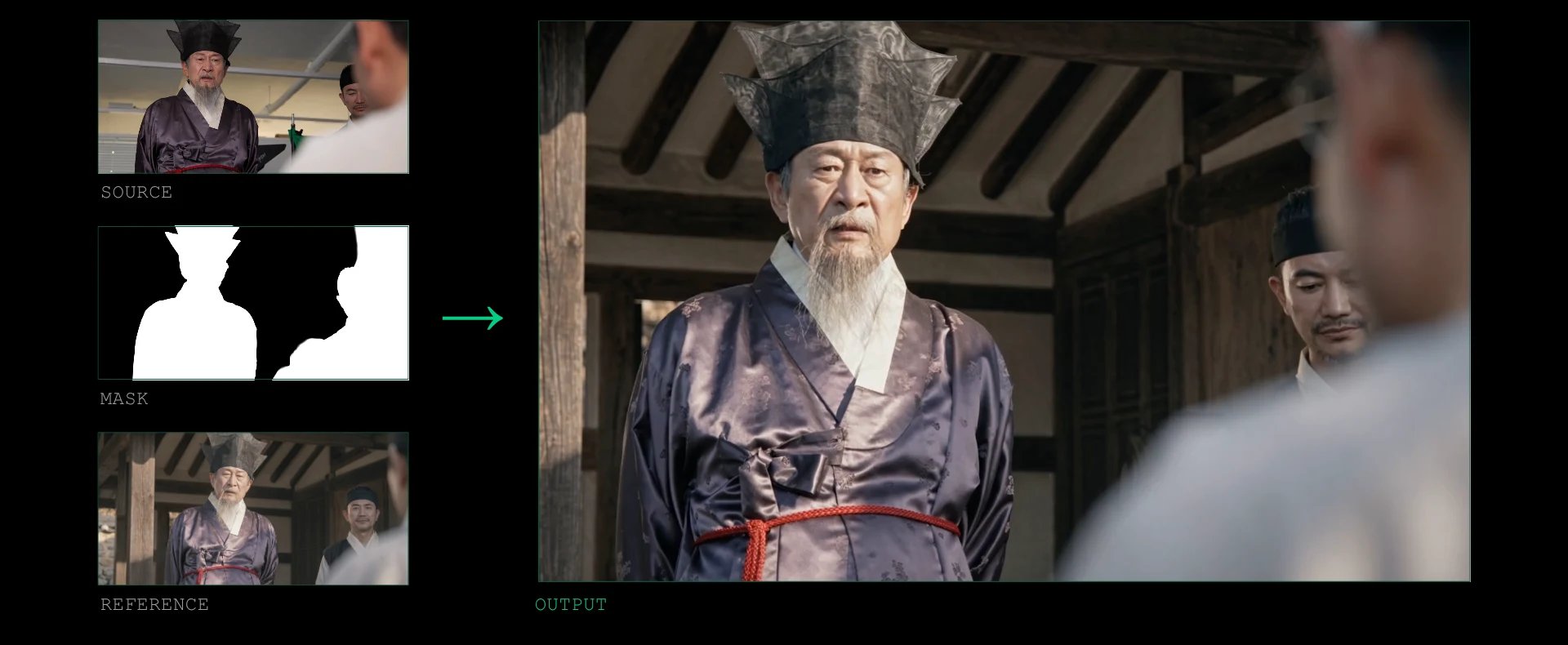
Imperfect References Are Fine
Your reference image doesn’t need to perfectly match your source footage. If a face or a detail changes in a generated reference, that’s fine. SwitchX knows what your original pixels are and brings only the lighting and style from the reference, applying it on top of your actual footage.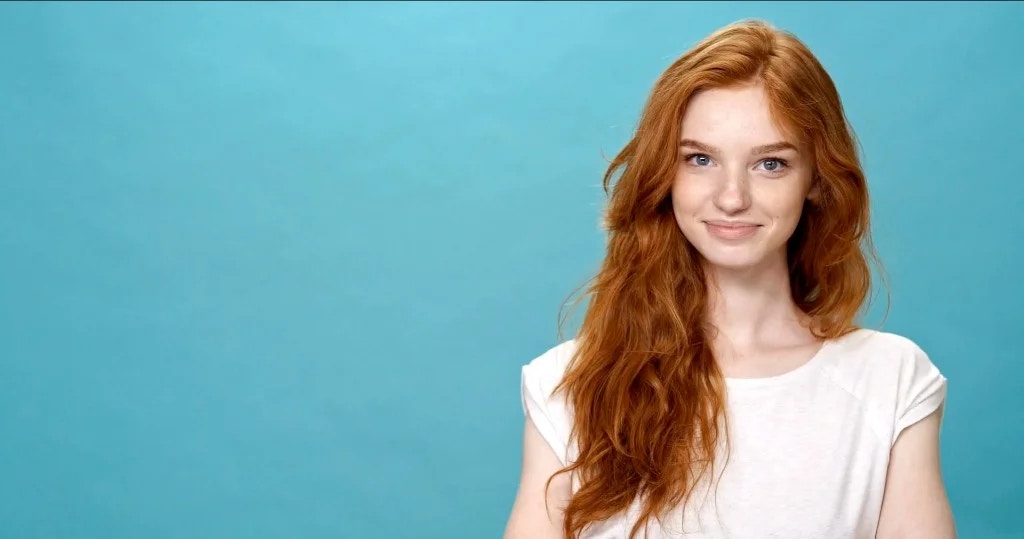
Source
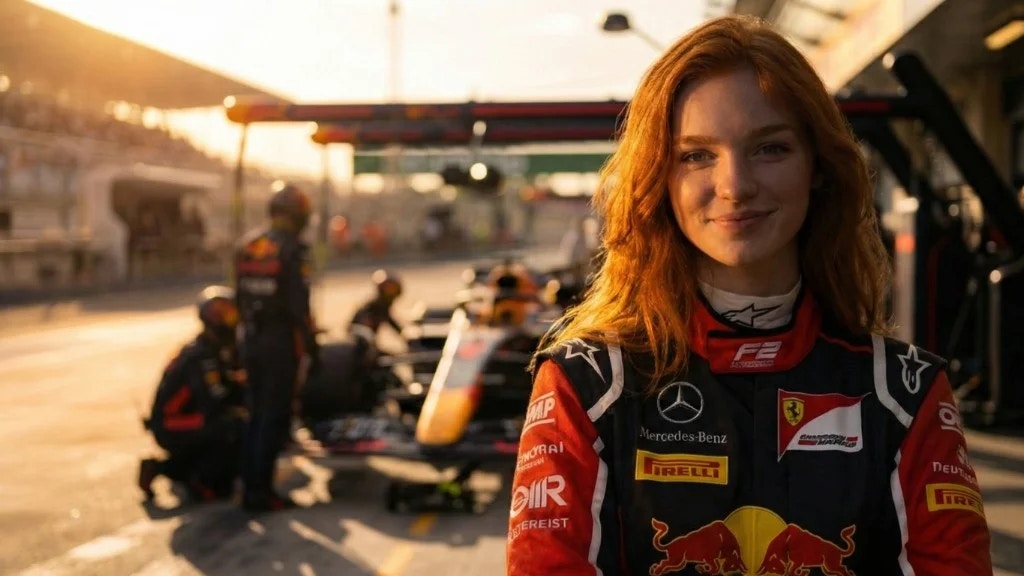
Reference Image
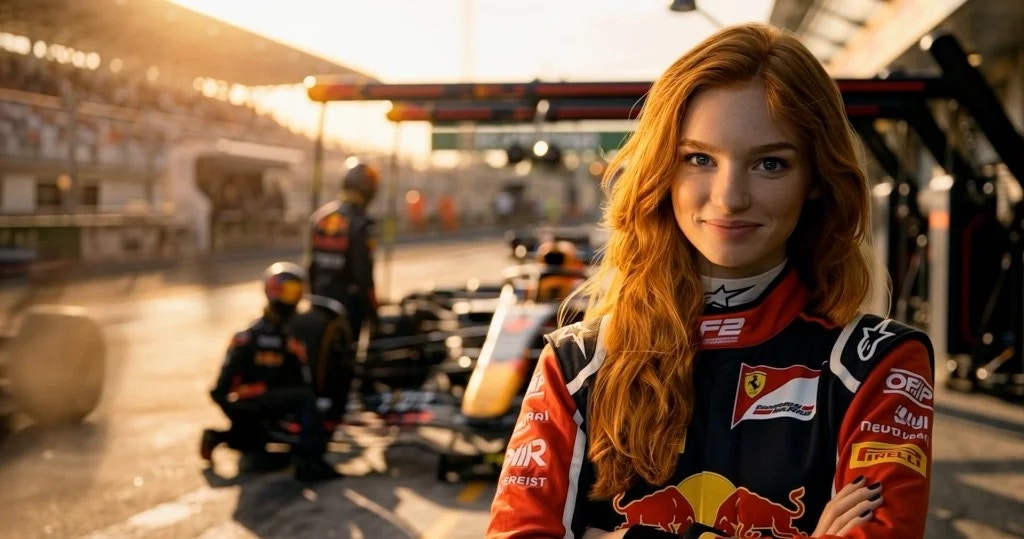
SwitchX Result
Settings & Export
- Resolution: 720p, 1080p, or 2160p. Each tier is a maximum cap on the shortest side, and a smaller source can also be enlarged (those options are tagged Upscale in the picker).
- Length: up to 480 frames (20 seconds at 24fps).
- Export: 8-bit MP4 and 10-bit MOV.
- Aspect ratio and frame rate: always match your source.
2160p generation and the 10-bit MOV download require a Professional or
Team plan.
Iterate then Finish
Explore faster for less in 720p, pick your favorite, then Finish it in 4K. More than an upscale: Finish re-renders your take from the original source footage, recovering source detail to match a native 4K generation.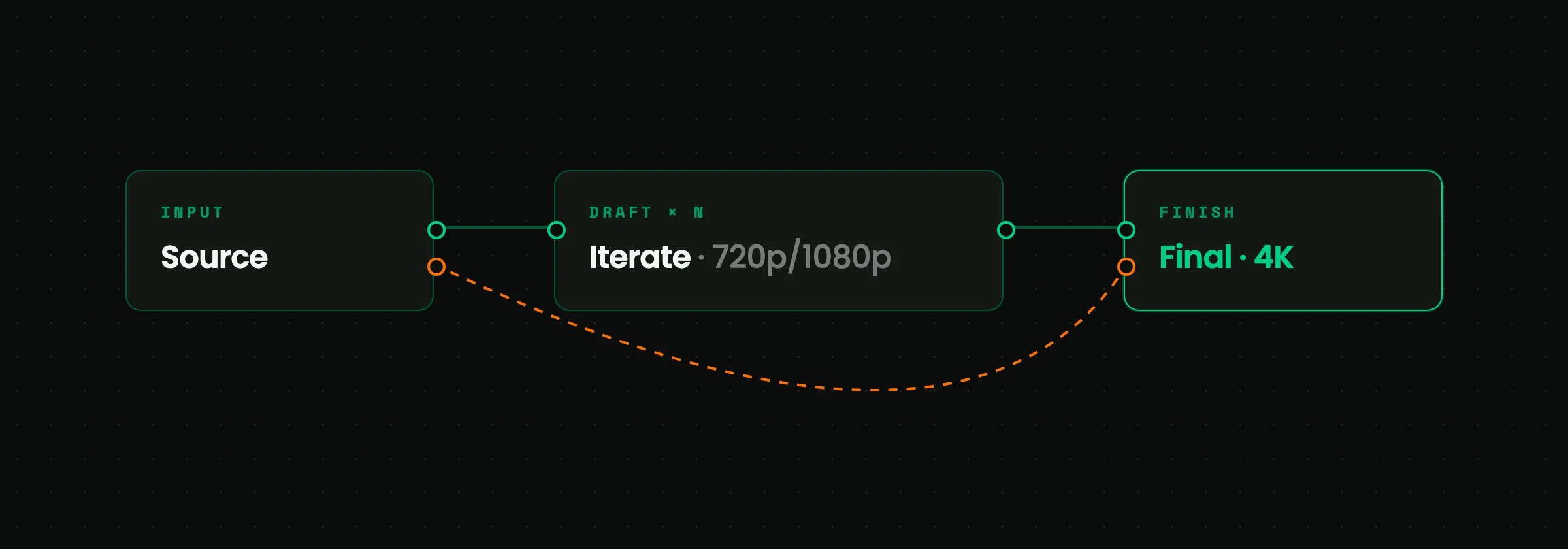
Model Versions
2160p generation and the 10-bit MOV download require a Professional or
Team plan.