SDR to HDR is available exclusively on Beeble (Cloud app). It is not available in Beeble Studio.
SDR to HDR is a professional reconstruction tool for filmmakers, colorists, and VFX artists, powered by our SwitchHDR model. It turns standard 8-bit SDR footage into true 16-bit, scene-linear HDR masters built for production pipelines. Unlike tone mapping, SwitchHDR rebuilds the detail SDR threw away. It recovers information behind blown windows and crushed blacks, while keeping well-exposed areas faithful to the source. The principle is simple: recover what was lost, keep what matters. Key features:
  • True 16-bit EXR output with a full ACES workflow (ACES2065-1, AP0)
  • Expanded depth and range for smoother grading with less banding
  • Precise control via highlight and shadow masks, with optional text prompts
  • Powered by SwitchHDR, our foundational model trained specifically for accurate SDR-to-HDR reconstruction

Quick start

1

Upload your source

Upload an image or a video (1-240 frames). For longer clips, trim before uploading.
2

Set the masks

Use Highlight and Shadow thresholds to define which regions the model reconstructs. The overlay and histogram show exactly which pixels are affected.
Video: Use Change Frame to verify the mask on a different frame.
3

Add prompts (optional)

Open Prompt to describe what should appear in recovered highlights and shadows, or click Suggest for an auto-generated prompt.
4

Choose settings and generate

Select output resolution (1080p or 720p). Under Advanced, set a fixed Seed for reproducible results.
5

Preview and download

Inspect the result with the exposure preview (EV slider / Adjust exposure), then download the HDR master (and video deliverables if applicable).

Resolution & project specs

SettingDetails
Resolution1080p or 720p
Aspect RatioAlways preserved
Frame RateAlways preserved
SwitchHDR will never distort your original aspect ratio or frame rate. The engine only scales the shortest side of your footage to match the chosen resolution, so you can iterate quickly without breaking your project specs.

Pricing & limits

ItemDetails
Frames1-240 frames per job (images count as 1 frame)
Resolution1080p or 720p (short edge is scaled to the selected resolution)
Credits10 credits (1080p) or 3 credits (720p) per 30 frames
See the full credit policy for details.

Output

What you download:
FileWhat it is
{name}_ACES2065-1.exr / .zipFinishing master EXR in scene-linear ACES2065-1 (AP0), 16-bit half-float. Video jobs download as a numbered EXR sequence in a ZIP.
{name}_HLG.movFor video jobs, a Rec.2020 / HLG QuickTime for playback and review.
{name}_mask_highlight / _mask_shadowReconstruction mattes (PNG for images, MP4 for video) for comp and selective grading.

Color pipeline

Your EXR master is ACES2065-1 (AP0), scene-linear. Two critical notes:
Interpret and import as ACES2065-1 / Linear. If your app treats the EXR as sRGB / Rec.709, it will look dark and desaturated. That is a missing transform, not a bad render.
Expect values above 1.0. Recovered highlights can exceed display white. View through a tone-mapped display transform to avoid apparent clipping.

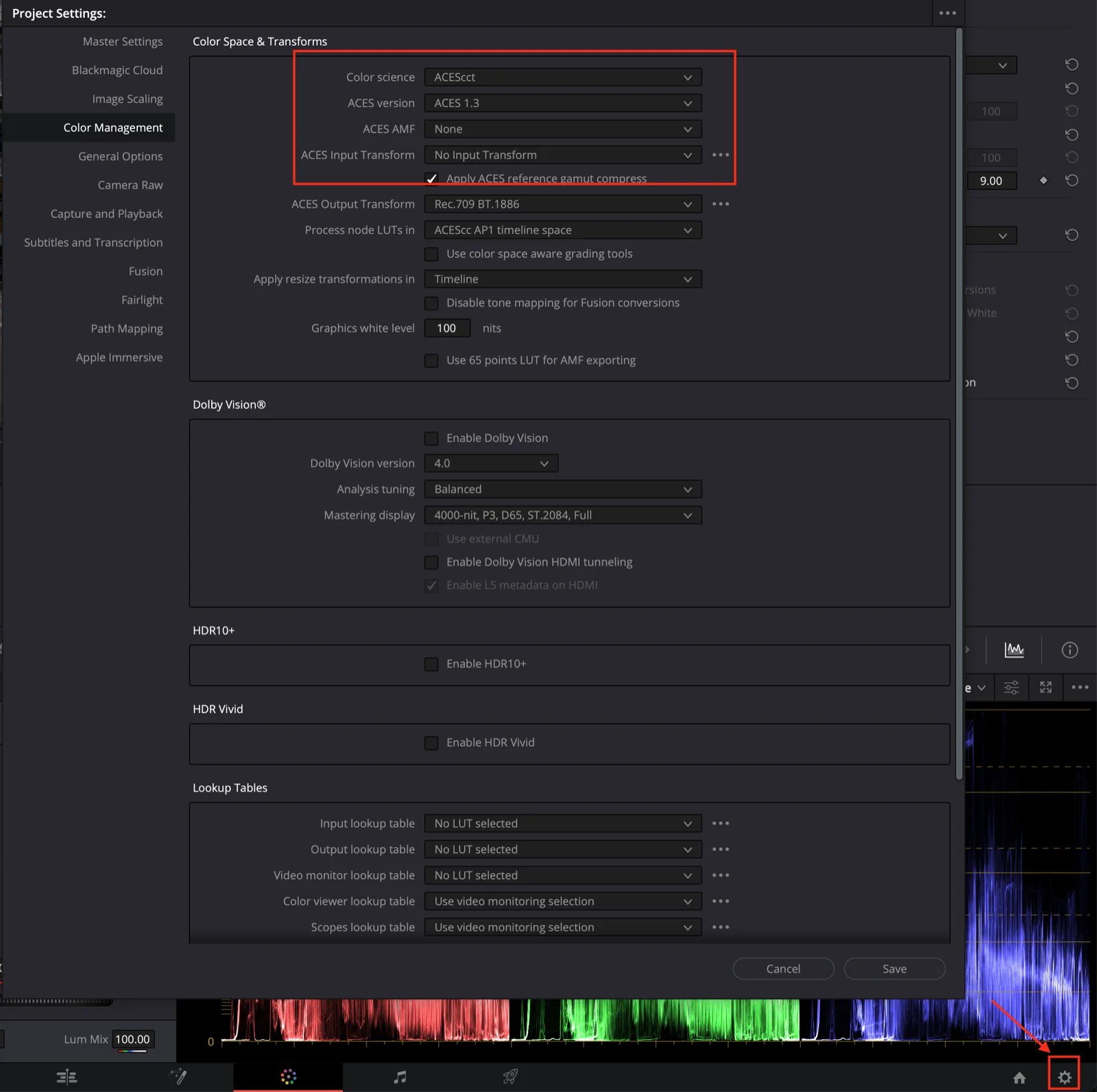
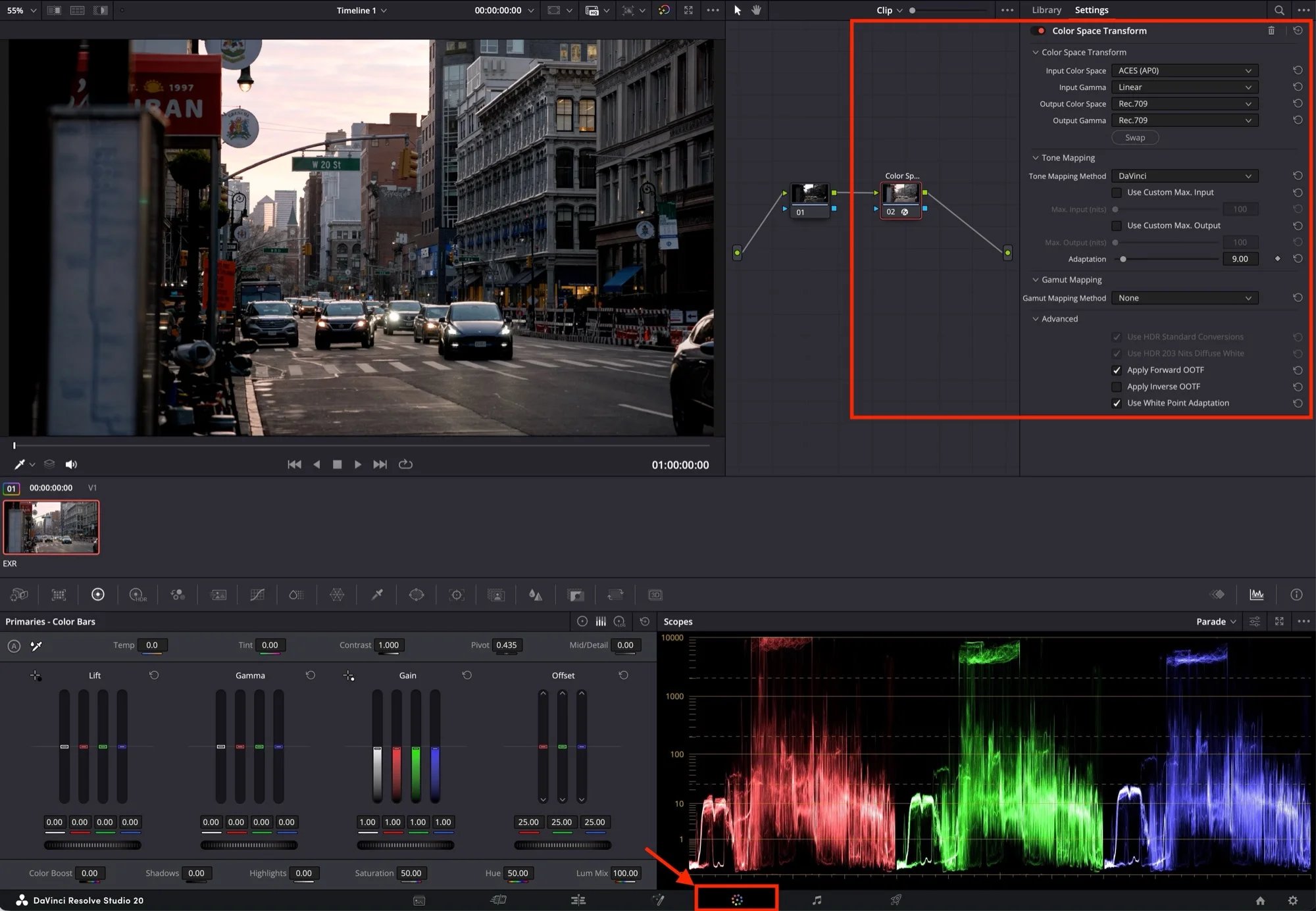
Load in DaVinci Resolve & Nuke

Below are quick, practical defaults for getting the EXRs to look right, viewed through an ACES display transform instead of being misinterpreted as Rec.709 / sRGB.
  1. Project Settings → Color Management
    • Color science: ACEScct
    • ACES version: 1.3 (or your facility standard)
  2. Media Pool → right-click clip → Input Color Space
    • Set to ACES2065-1
  3. Monitoring / output
    • Choose the appropriate Output / Display Transform for your monitor (e.g. Rec.709 or Rec.2020 HLG) in Color Management.
If the EXR looks dark or desaturated, the input transform is missing or incorrect. Set the Input Color Space to ACES2065-1. It is normal for highlights to exceed 1.0 in scene-linear; judge exposure through the display transform.
As always, we can’t wait to see what you create with Beeble.