

Prerequisites
- Nuke 14.1v2+ (tested on Windows and macOS)
- Beeble Nuke Plugin - Download HERE
Install Plugin
- Download and unzip the Beeble plugin folder
-
Move the Beeble folder to your
.nukedirectory:- Linux, macOS:
~/.nuke/Beeble/ - Windows:
C:\Users\<username>\.nuke\Beeble\
- Linux, macOS:
-
Open or create
init.pyin your.nukefolder and add: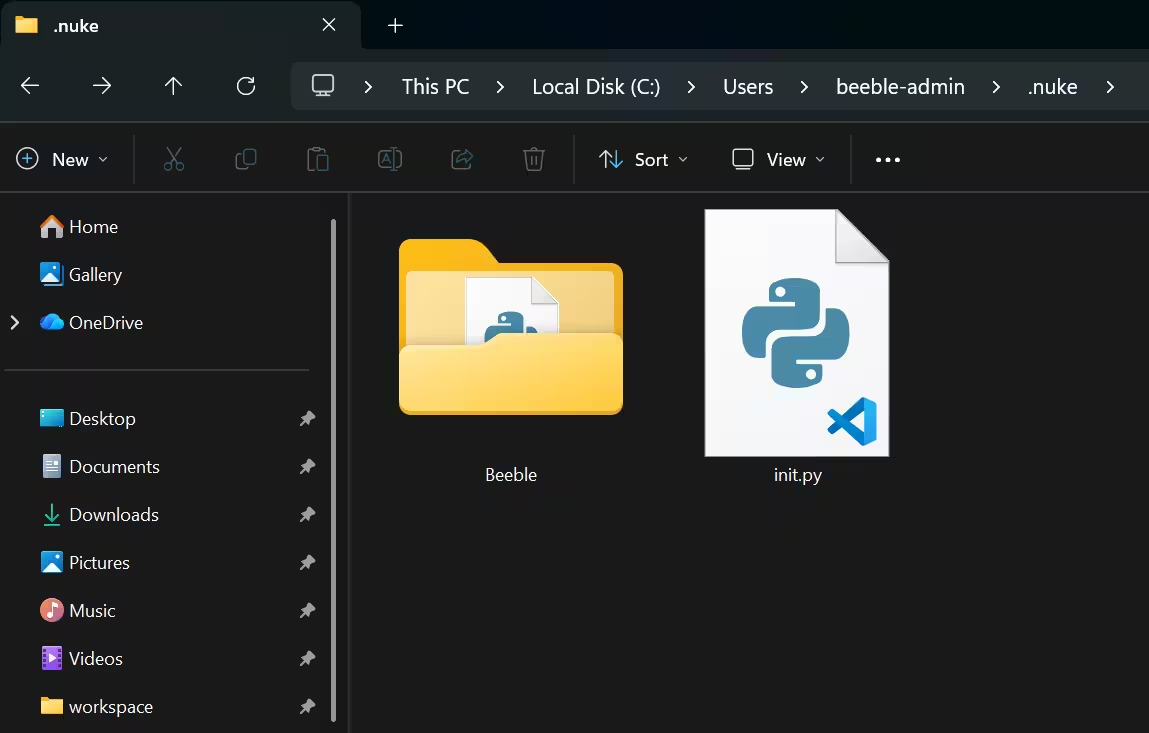
-
Restart Nuke, and you can find Beeble on your toolbar
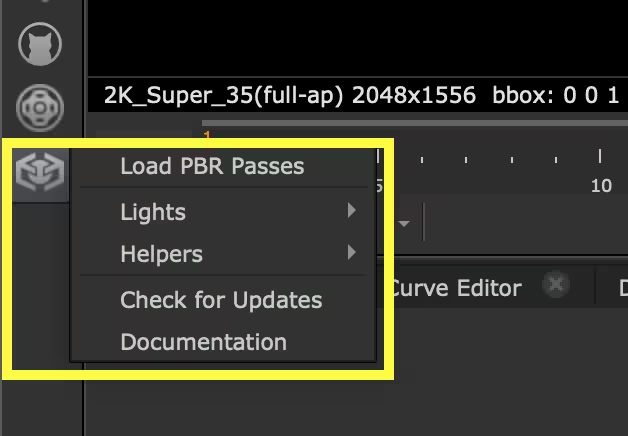
Quick Start
1. Load PBR Passes
- Prepare your VFX passes. It should be unzipped folder
- In Nuke, go to the left toolbar and click Beeble > Load PBR Passes
- Select the folder that contains your VFX passes. The plugin supports EXR, PNG, and MP4:
- EXR: the folder should contain an EXR sequence where multiple passes are packed into each EXR file (e.g.
Frame_000001.exr).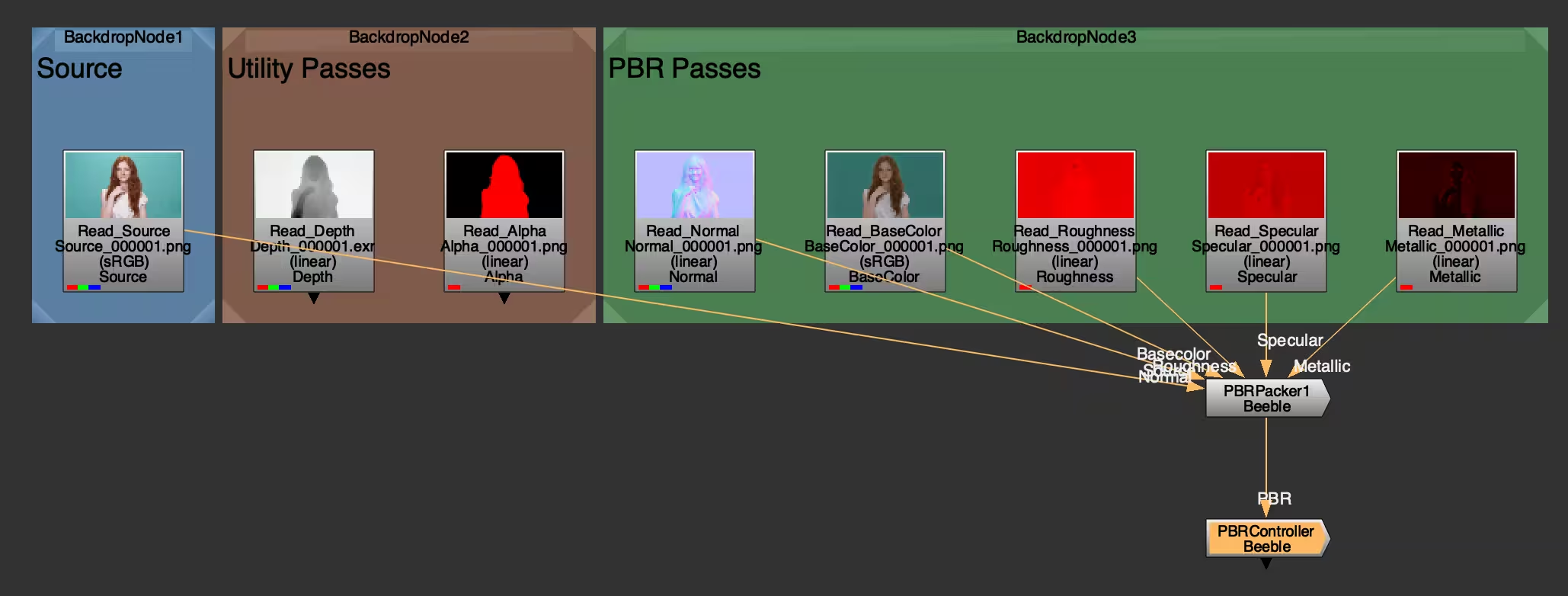
- PNG: the folder should contain subfolders for each pass, and each subfolder holds a PNG image sequence (e.g.
Normal/Normal_000001.png). - MP4: the folder should include one video per pass, named like
<passname>.mp4(e.g.Normal.mp4).
- EXR: the folder should contain an EXR sequence where multiple passes are packed into each EXR file (e.g.
2. Add Light
Go to Beeble > Lights and select the type of light that you want. Connect the PBRController output to the light input.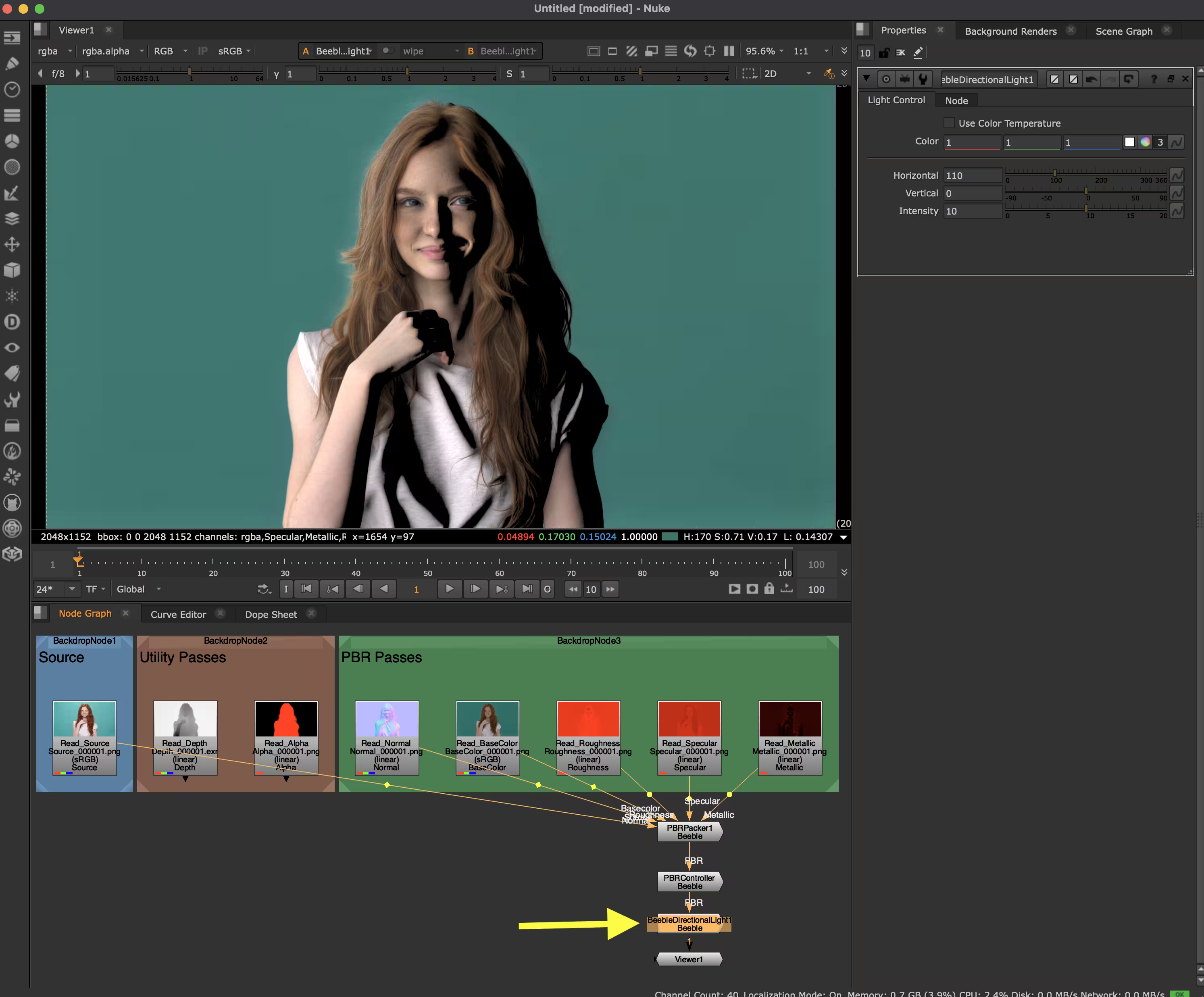 For the Environment Light, load an HDRI file and connect it to the light input.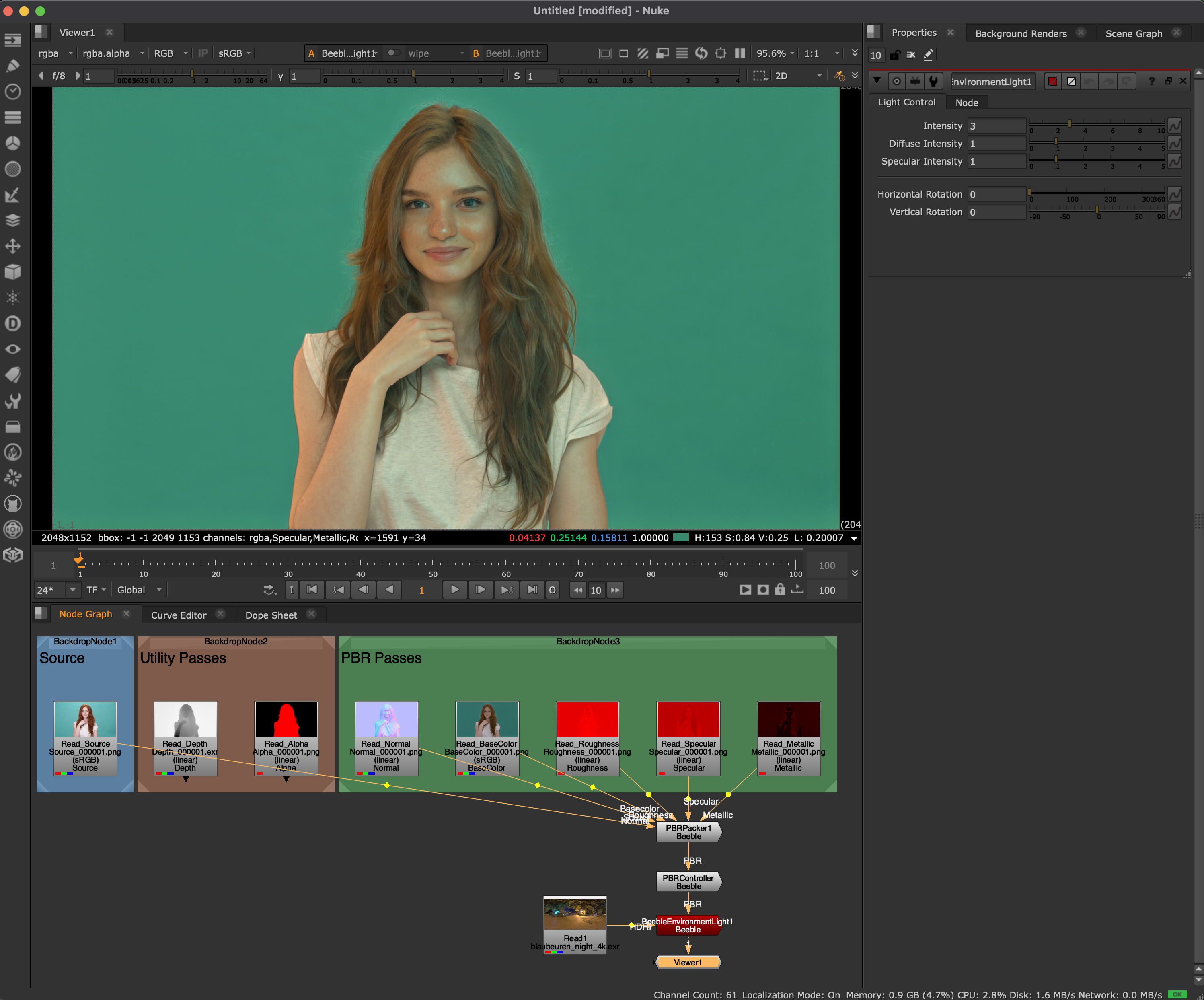
3. Relight
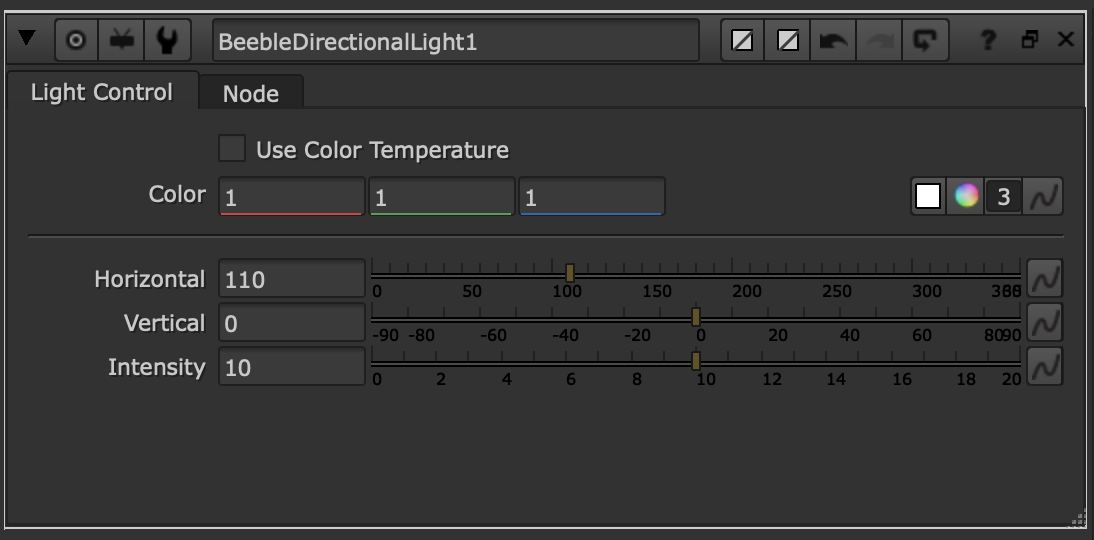
- Adjust the light properties in the control panel to get your desired look.
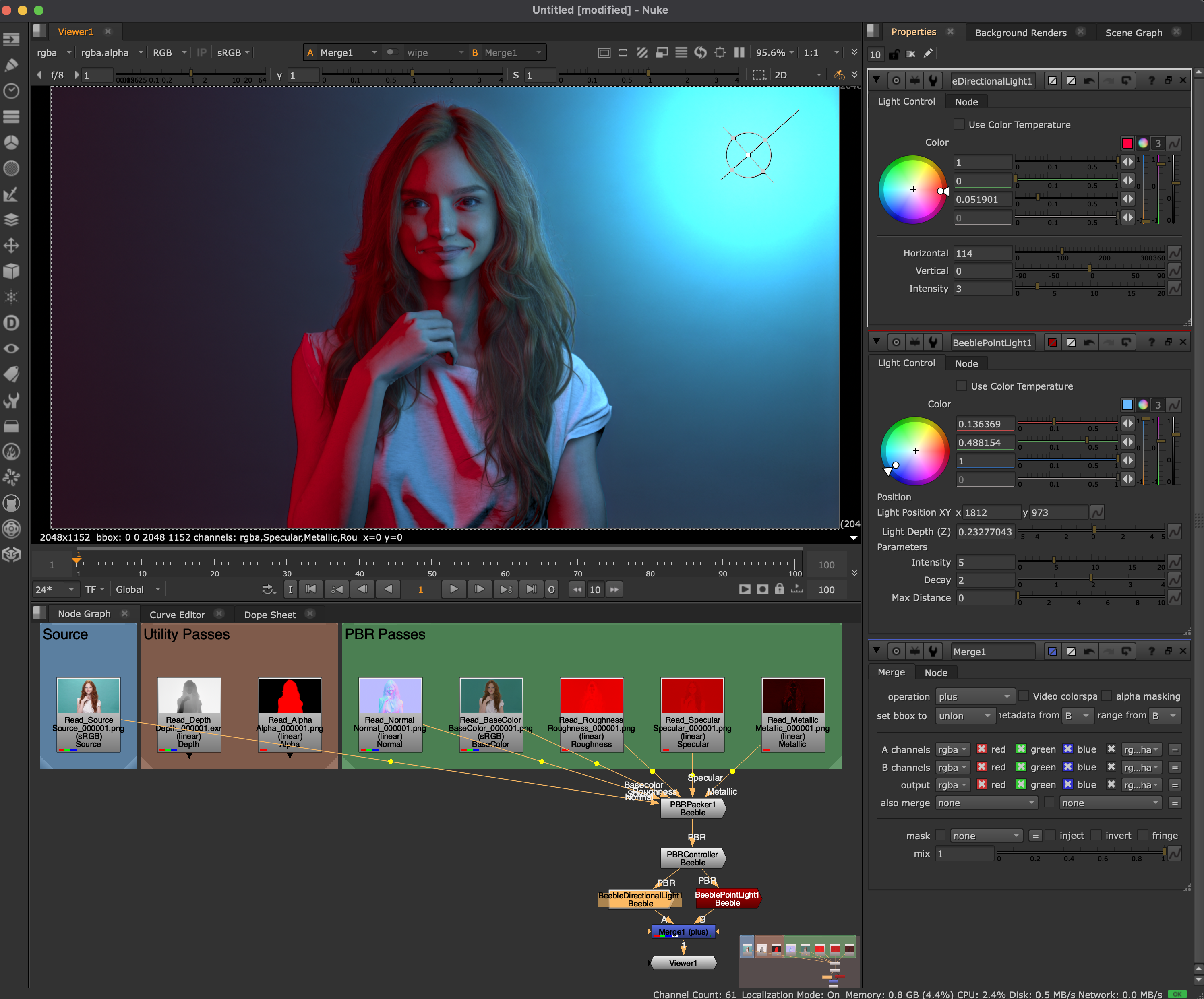
- To add multiple lights, use a Merge node, set to plus.
Node Reference
PBR (multi-layer) refers to a single image stream containing multiple
Nuke layers: Source, Normal, Basecolor, Roughness, Specular, and Metallic.
This format is produced by PBRPacker (for MP4/PNG) or directly available in
EXR sequences generated by Beeble.
Nodes
PBR Packer
The PBR Packer combines individual PBR pass inputs into a single multi-layer stream.Automatically created when using Load PBR Passes with MP4/PNG. Not
needed for EXR sequences as passes are already packed into layers.
- To add manually, go to Beeble > Helpers > PBR Packer
- Connect the 6 inputs: Source, Normal, Basecolor, Roughness, Specular, Metallic
PBR Controller
The PBR Controller allows you to fine-tune the PBR passes.PBRController is automatically created when you use Load PBR Passes.
- To add manually, go to Beeble > Helpers > PBR Controller
- Adjust the parameters:
Directional Light
- Go to Beeble > Lights > Beeble Directional Light
- Connect the PBRController output to the light input
- Adjust the parameters:
Point Light
- Go to Beeble > Lights > Beeble Point Light
- Connect the PBRController output to the light input
- Adjust the parameters:
Environment Light
Environment Light applies image-based lighting (IBL) using an HDRI image for realistic ambient illumination.- Go to Beeble > Lights > Beeble Environment Light
- Connect the PBRController output to the PBR input
- Connect an HDRI image (Read node with .exr or .hdr) to the HDRI input
- Adjust the parameters: