

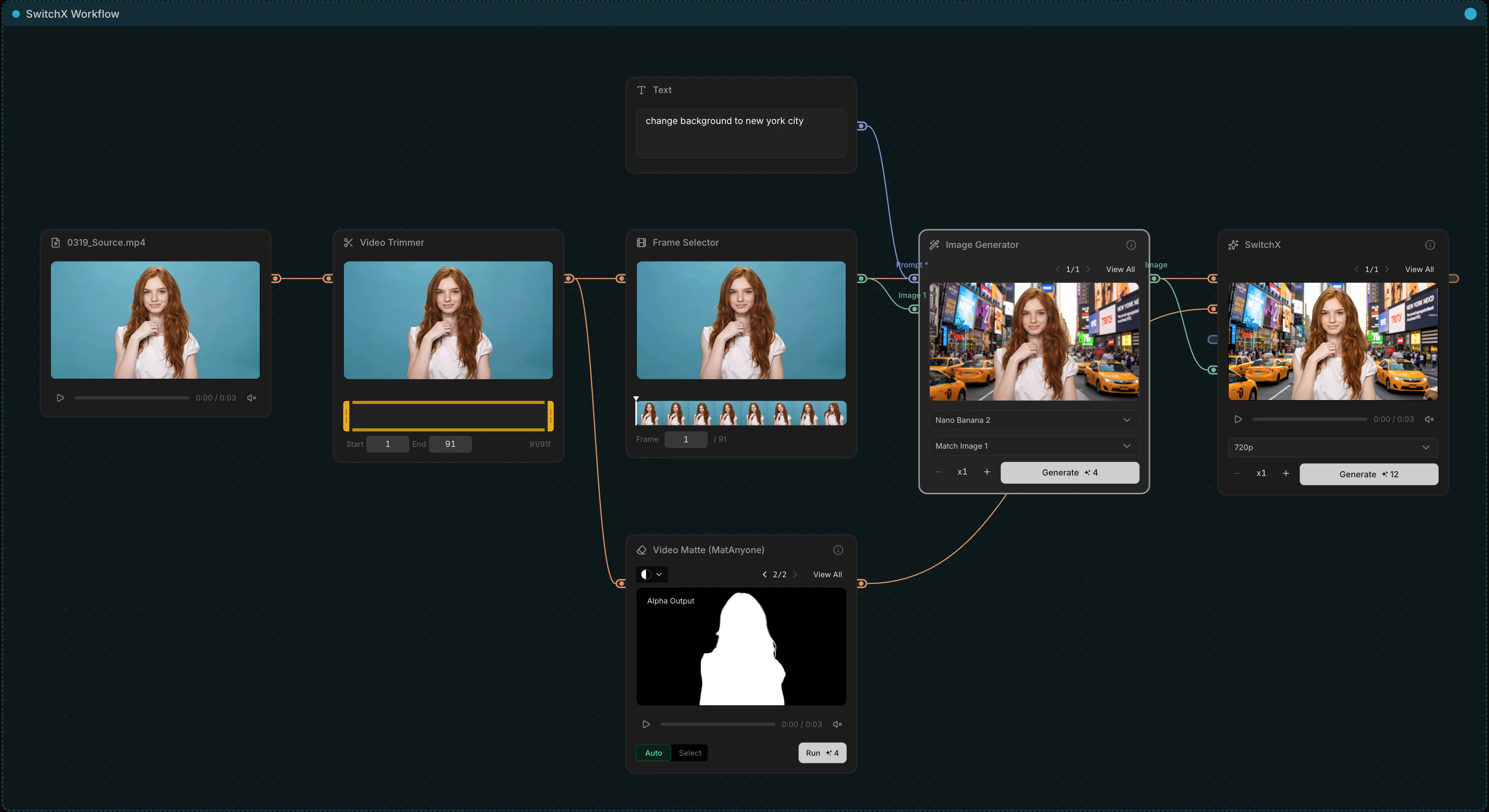
Node Catalog
Canvas ships with four node groups.Input
| Node | Output | Notes |
|---|---|---|
| Text | text | Plain text prompt. |
| Image | image | PNG, JPEG, or WebP. |
| Video | video | MP4 or MOV. |
| Text Iterator | text | Split text into multiple items by delimiter — type the text on the node or connect an upstream text node. Drives multi-prompt batches. |
| Image Iterator | image | Upload multiple images at once and batch-process the full set through connected nodes — no need to upload one-by-one. |
| Video Iterator | video | Upload multiple videos at once and batch-process the full set through connected nodes — no need to upload one-by-one. |
AI Tools
| Node | Inputs | Output | Notes |
|---|---|---|---|
| SwitchX | source video reference image alpha video prompt | video | Same model as the standalone SwitchX product. Source and alpha handles are video-only. If you need Fill Mode, leave the alpha input disconnected. Set a random seed for reproducibility. |
| LLM | prompt media | text | Generate text from a prompt using an LLM. Supports up to 4 media inputs (image or video). Use @ to reference connected media in your prompt. |
| Image Generator | prompt images | image | Supports 1 to 4 reference images. |
| Video Generator | prompt start / end frame reference media | video | Generate a short clip via external models (e.g., Seedance 2.5). Pick a model in the footer:
|
| Video Matte | video | alpha RGBA | Two outputs: Alpha (grayscale matte) and RGBA (source merged with alpha). Two modes: Auto (one-click) or Select (interactive SAM editor). Choose between MatAnyone (general footage) and CorridorKey (green-screen keys). Export the RGBA composite as MOV or a PNG sequence, and the alpha as a PNG sequence. |
| VFX Pass Generator | image / video | image / video × 6 | Extracts PBR material maps (BaseColor, Normal, Depth, Roughness, Specular, Metallic) from an image or video using SwitchLight 3.0. Export passes individually or all at once with Export All, including PNG sequences. |
| Depth Generator | image / video | image / video | Extracts a depth map from an image or video using Video Depth Anything. Export as a 16-bit EXR for higher-fidelity depth workflows. |
| Video Upscaler | video | video | Upscale a video 1×–4× (up to 4K) with Topaz Video AI. Pick a Mode in the footer (every standard Topaz model fal offers: Proteus, Artemis, Gaia and Nyx families); codec, frame interpolation and the Topaz tuning sliders live under Advanced. |
| Image Upscaler | image | image | Upscale an image 1×–4× (up to 8K) with Topaz Gigapixel AI. Pick a Mode in the footer (Standard V2, Low Resolution V2, CGI, High Fidelity V2, Text Refine, generative Recovery / Redefine / Wonder, and more). |
| Image Describer | prompt images | text | Generate a detailed text description of connected image(s) using an LLM. Connect up to 4 images. Comes with a built-in, editable prompt — hit Reset to restore the default. |
| Video Describer | prompt videos | text | Generate a detailed text description of connected video(s) using an LLM. Connect up to 4 videos, each up to 5 minutes. Comes with a built-in, editable prompt — hit Reset to restore the default. |
| Camera Angle (Qwen) | image | image | Re-render a still from a different camera angle. |
Edit
| Node | Inputs | Output | Notes |
|---|---|---|---|
| Extract Frame | video | image | Extract a single frame from a video |
| Trim | video | video | Trim a video to a specific frame range |
| Crop | image / video | image / video | Crop an image or video. Interactive overlay or numeric inputs. |
| Resize | image / video | image / video | Resize an image or video to target dimensions |
| Curves | image / video | image / video | Adjust the tonal range with interactive RGB and per-channel (R/G/B) curves. Drag points to shape the curve; click empty space to add a point; double-click or drag a point off the graph to remove it. |
| Invert | image / video | image / video | Invert RGB colors of an image or video. |
| Rotate / Flip | image / video | image / video | Rotate an image or video in 90° increments, or flip it horizontally or vertically. |
| Erode / Dilate | image / video mask | image / video | Dilate (grow) or erode (shrink) bright regions. Typically chained after Video Matte for matte cleanup. Strength ranges from −200 to +200. Optional mask input. |
| Channels | image / video | image / video | Isolate a single RGBA channel (R, G, B, or Alpha) and view it as grayscale. |
| Blur | image / video mask | image / video | Apply a Box or Gaussian blur (Size 1–100). Optional mask input to confine the blur to specific regions. |
| Merge | background foreground mask | image / video | Composite foreground over background with 16 blend modes (Normal, Multiply, Screen, etc.). Inputs accept image or video independently. Optional grayscale mask. |
| Merge Alpha | RGB alpha matte | image / video | Combine an RGB source and a grayscale alpha matte into a single RGBA stream. Both inputs accept image or video. |
| Compositor | layers | video | Composite multiple layers into a single video with per-layer blend modes, opacity, and timing. |
| Paint | image | result mask | Freehand drawing with pen and eraser. Connect an image to paint over it, or set dimensions for a blank canvas. Outputs the painted result (RGBA) and a grayscale mask. |
| Text Concatenator | text × 2 | text | Concatenate two prompts — use one as a system prompt and the other as a user prompt. |
Utility
| Node | Inputs | Output | Notes |
|---|---|---|---|
| Sticky Note | — | — | Sticky note for annotations |
| Router | any | any | Reroute connections for cleaner graphs (. shortcut) |
| Viewer | image / video | — | Display connected media at larger size with playback controls |
| Compare | image / video | — | Side-by-side A/B comparison |
| Export | image / video | — | Download connected media directly. Use the Save As dialog to choose where files are saved. |
Handles & Data Types
Each node’s handle color represents its data type. Required inputs are marked with an asterisk on the label (e.g.,Source *).
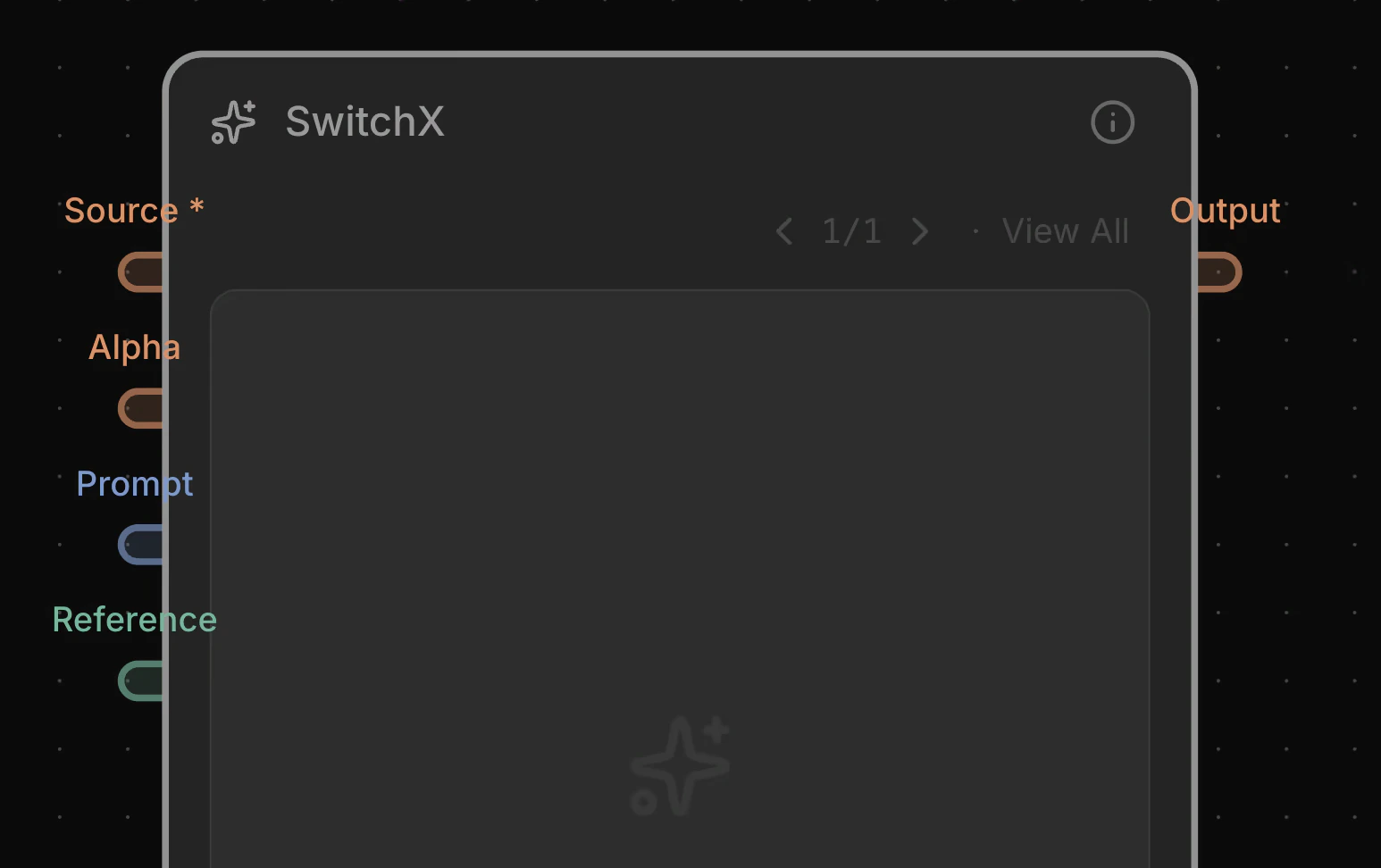
Type colors
| Type | Color | Examples |
|---|---|---|
| Image | ● Green | SwitchX reference, Extract Frame output |
| Video | ● Orange | SwitchX source / alpha / output, Video Matte output |
| Text | ● Blue | LLM output, prompt inputs |
Keyboard Shortcuts
Canvas
| Shortcut | Action |
|---|---|
V | Switch to Pointer tool |
H | Switch to Hand (pan) tool |
/ or Tab | Open the Add Node menu at the cursor |
. | Add a Router node at the cursor |
T | Add a Sticky Note at the cursor |
Q | Toggle the Job Queue panel |
\ | Toggle the Viewport panel |
1 | Connect selected node to Viewer and open Viewport |
E | Hold to highlight the selected node’s wires; double-tap to keep it on |
Space | Hold to pan; on selected video nodes, toggles playback (multi-select plays in sync) |
View
| Shortcut | Action |
|---|---|
F | Fit view to all nodes |
Cmd/Ctrl + 0 | Zoom to 100% |
Cmd/Ctrl + 1 | Fit all nodes |
Cmd/Ctrl + 2 | Fit selected nodes |
Cmd/Ctrl + = / Cmd/Ctrl + - | Zoom in / out |
Selection
| Shortcut | Action |
|---|---|
Esc | Deselect all nodes and edges |
Cmd/Ctrl + A | Select all nodes |
Cmd/Ctrl + C / Cmd/Ctrl + V | Copy / Paste (preserves output history) |
Cmd/Ctrl + Shift + V | Paste without output history |
Cmd/Ctrl + D | Duplicate selected nodes with their output content |
Cmd/Ctrl + G | Group / Ungroup selected nodes |
Delete / Backspace | Delete selected nodes and edges |
Alignment
| Shortcut | Action |
|---|---|
Alt/Opt + A | Align selected nodes to the left |
Alt/Opt + D | Align selected nodes to the right |
Alt/Opt + W | Align selected nodes to the top |
Alt/Opt + S | Align selected nodes to the bottom |
Alt/Opt + H | Align selected nodes to horizontal center |
Alt/Opt + V | Align selected nodes to vertical center |
Cmd/Ctrl + Alt/Opt + H | Distribute selected nodes with equal horizontal spacing |
Cmd/Ctrl + Alt/Opt + V | Distribute selected nodes with equal vertical spacing |
General
| Shortcut | Action |
|---|---|
Cmd/Ctrl + S | Save |
Cmd/Ctrl + Z / Cmd/Ctrl + Shift + Z | Undo / Redo |
Cmd/Ctrl + , | Open Settings dialog |
Shift + ? | Open the Keyboard Shortcuts dialog |