
Documentation Index

Fetch the complete documentation index at: https://docs.beeble.ai/llms.txt

Use this file to discover all available pages before exploring further.

Background Remover is available exclusively on Beeble (Cloud app). It is not available in Beeble Studio.
Background Remover extracts clean alpha mattes from your footage using AI, producing background-free results ready for compositing and VFX work. Upload a video, image sequence, or image, and the AI generates a precise foreground mask automatically.
Background Remover is a standalone alpha extraction tool. For generating a full set of VFX passes (alpha, depth, normal, PBR maps), see VFX Pass Generator.

How It Works

Step 1: Choose Alpha Model

Select the AI model best suited for your footage:
MatAnyone (default)CorridorKey
PurposeGood for general background removalPerfect green screen keys
Learn More
How it worksStage 1: Pick a keyframe and provide an alpha mask with our interactive masking tool.

Stage 2: Propagate the alpha mask across all frames.
Stage 1: MatAnyone generates an alpha hint for every frame.

Stage 2: CorridorKey removes the green spill and refines the matte.
CorridorKey is designed specifically for green screen footage. Using it on footage without a green screen may produce unexpected or degraded results.

Step 2: Upload Your Footage

Upload your footage to begin. Background Remover supports three source types:
  • Video — MP4, MOV
  • Image Sequence — Sequence of image frames
  • Single Image — PNG, JPG

Step 3: Preview Frame (Optional)

A preview frame is extracted from your video with a rough alpha estimation generated on it, so you can review the overall quality before committing to full extraction. Preview frame
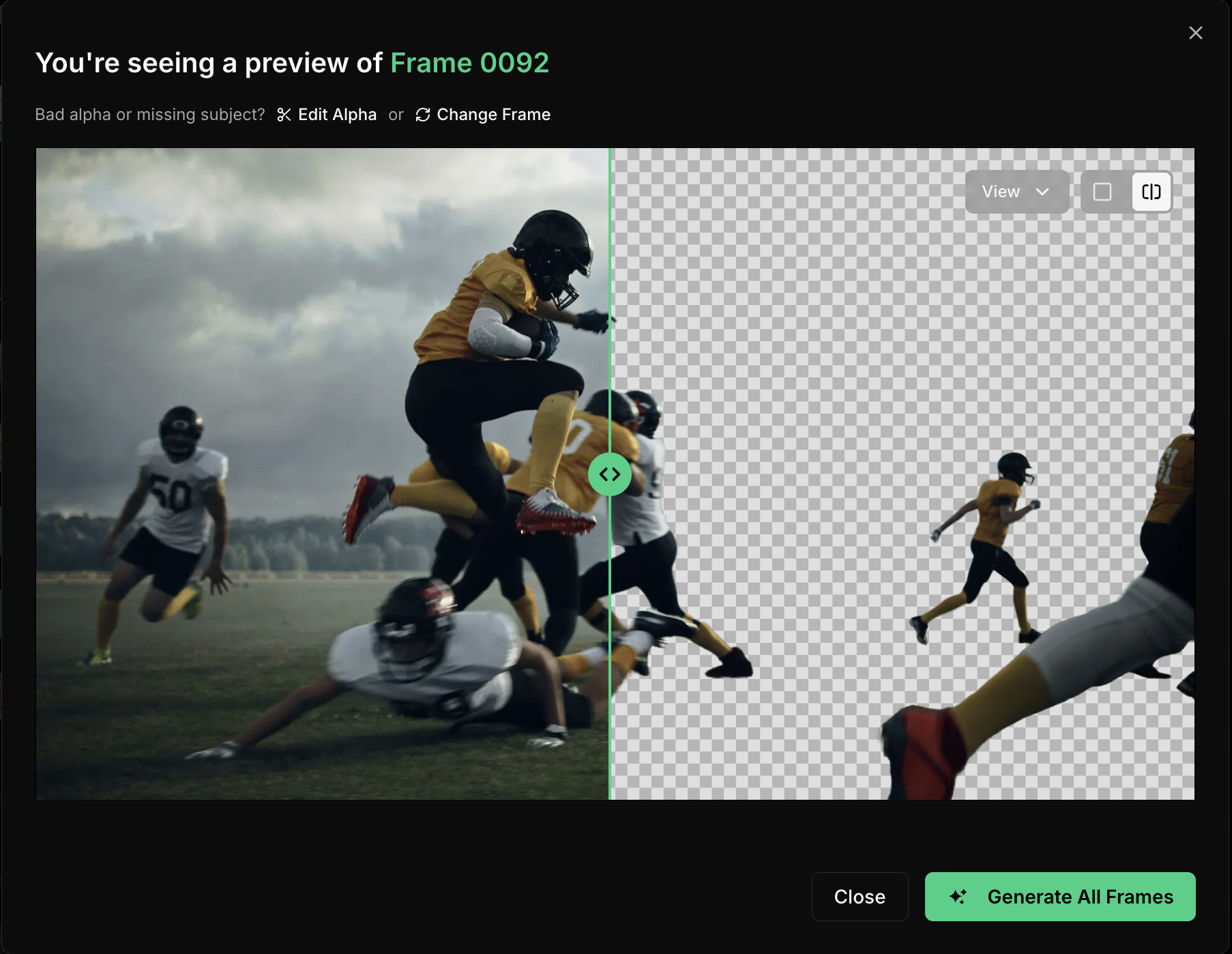
Step 4: Refinement (Optional)

If the preview alpha needs adjustment, you can refine it interactively by clicking the Edit Alpha button in the Preview Dialog. Alpha refinement
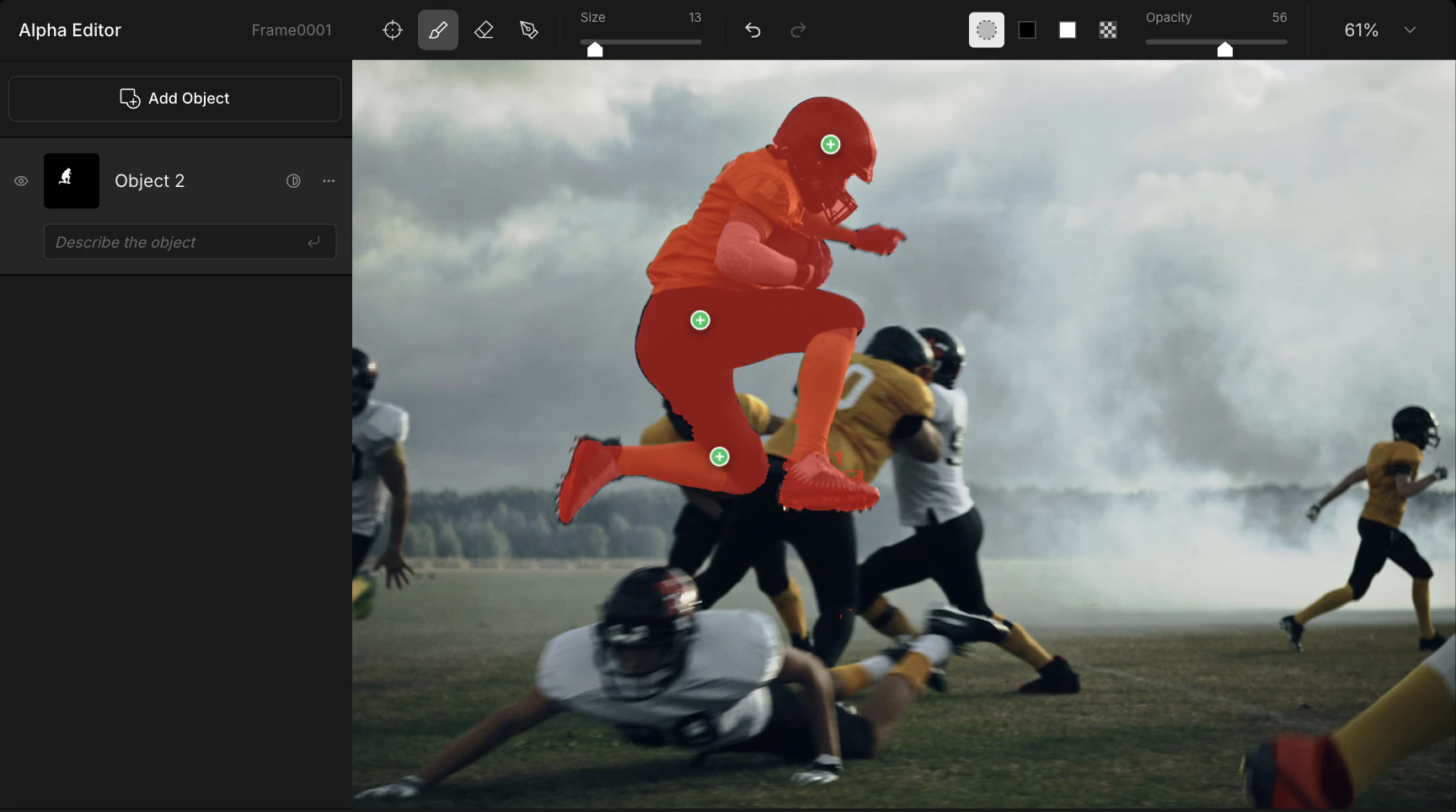
Preview in this refinement section shows a rough estimation — it is not intended to be pixel-perfect. Fine details like hair edges and semi-transparent areas will be refined during the full extraction in the next step.
Skip Review mode — You can choose to Skip Review during upload, which bypasses the preview step (Steps 3–4) and runs full extraction immediately.
  • The AI automatically uses the first frame as the reference and runs the entire pipeline without manual review.
  • This mode works best for simple shots with clear subjects and consistent backgrounds, where manual refinement is unlikely to be needed.

Step 5: Full Extraction

Once you approve the preview frame (or skip it), full extraction runs across all frames.

Step 6: Download Results

When extraction completes, download your results. You can also bulk download multiple completed results at once.

Specifications

These specifications are for Beeble (Cloud). Specifications may be updated as the platform evolves.

Upload Format

Beeble (Cloud app)
File FormatMP4 (H.264), MOV (ProRes 422, 4444, H.265)
Max Size2 GB
ResolutionUp to 2K (2048 px)
- Downscaled if larger
Frame CountUp to 3600 frames
- e.g. 60s @ 60fps or 120s @ 30fps (Professional plan)
FPSUp to 60 FPS
- Reduced if higher
ColorRec. 709 for best quality
- Other color spaces, such as Log, may degrade quality
Best Quality Settings - Use Rec. 709 / sRGB color space. Beeble (Cloud app) supports up to 2K and 3600 frames per video (60s @ 60fps).

Output Format

Background Remover produces two output types:
  • RGBA — Background removed result with transparency applied.
  • Alpha — Grayscale alpha matte (foreground mask).
FormatColor ChannelsBit DepthColor SpaceNote
MOVRGBA (4-ch)10-bitsRGBAlpha-embedded video for compositing
PNG SequenceRGBA (4-ch)8-bitsRGBFrame-by-frame PNG with transparency
PNGRGBA (4-ch)8-bitsRGBSingle image with transparency
The MOV output contains an embedded alpha channel, so you can drop it directly into After Effects, DaVinci Resolve, Final Cut Pro, or any editor that supports alpha video. No separate alpha matte needed.

Tips for Best Results

For the best alpha extraction results:
  • Use footage with clear contrast between subject and background
  • Ensure the subject is well-lit and in sharp focus
  • Avoid footage with excessive motion blur
  • Use high-resolution source material when possible
  • For videos, review and refine the preview frame before running full extraction