

Background Remover is available exclusively on Beeble (Cloud app). It is not
available in Beeble Studio.
Background Remover is a standalone alpha extraction tool. For generating a full set of
VFX passes (alpha, depth, normal, PBR maps), see Generate VFX
Passes.
Key Features
AI-Powered Alpha Extraction
Extract clean alpha mattes using advanced AI models for
professional-quality results.
Keyframe Preview & Refinement
Two-phase video processing: preview rough alpha keyframes first, refine
interactively, then run full extraction.
How It Works
Step 1: Upload Your Footage
Upload your footage to begin. Background Remover supports three source types:- Single Image — PNG, JPG
- Video — MP4, MOV
- Image Sequence — Sequence of image frames
Step 2: Keyframe Preview (Optional)
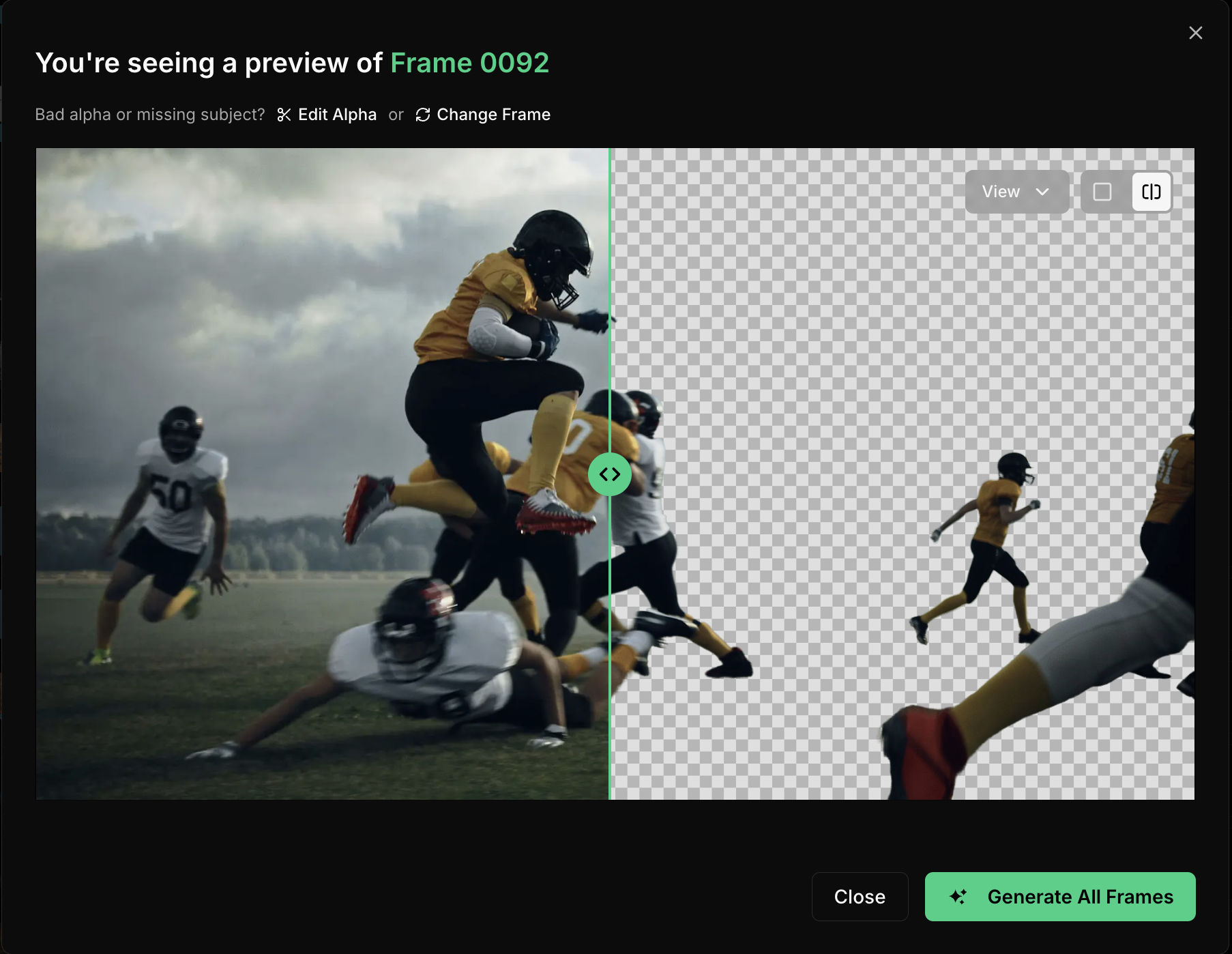
Keyframes are first extracted with rough alpha previews generated on those frames, so you can review the overall quality before committing to full extraction.The keyframe preview shows a rough alpha estimation — it is not intended to be
pixel-perfect. Fine details like hair edges and semi-transparent areas will be
refined during the full extraction in the next step.
Step 3: Keyframe Refinement (Optional)
If the keyframe alpha needs adjustment, you can refine it interactively by clicking the Edit Alpha button in the Keyframe Dialog.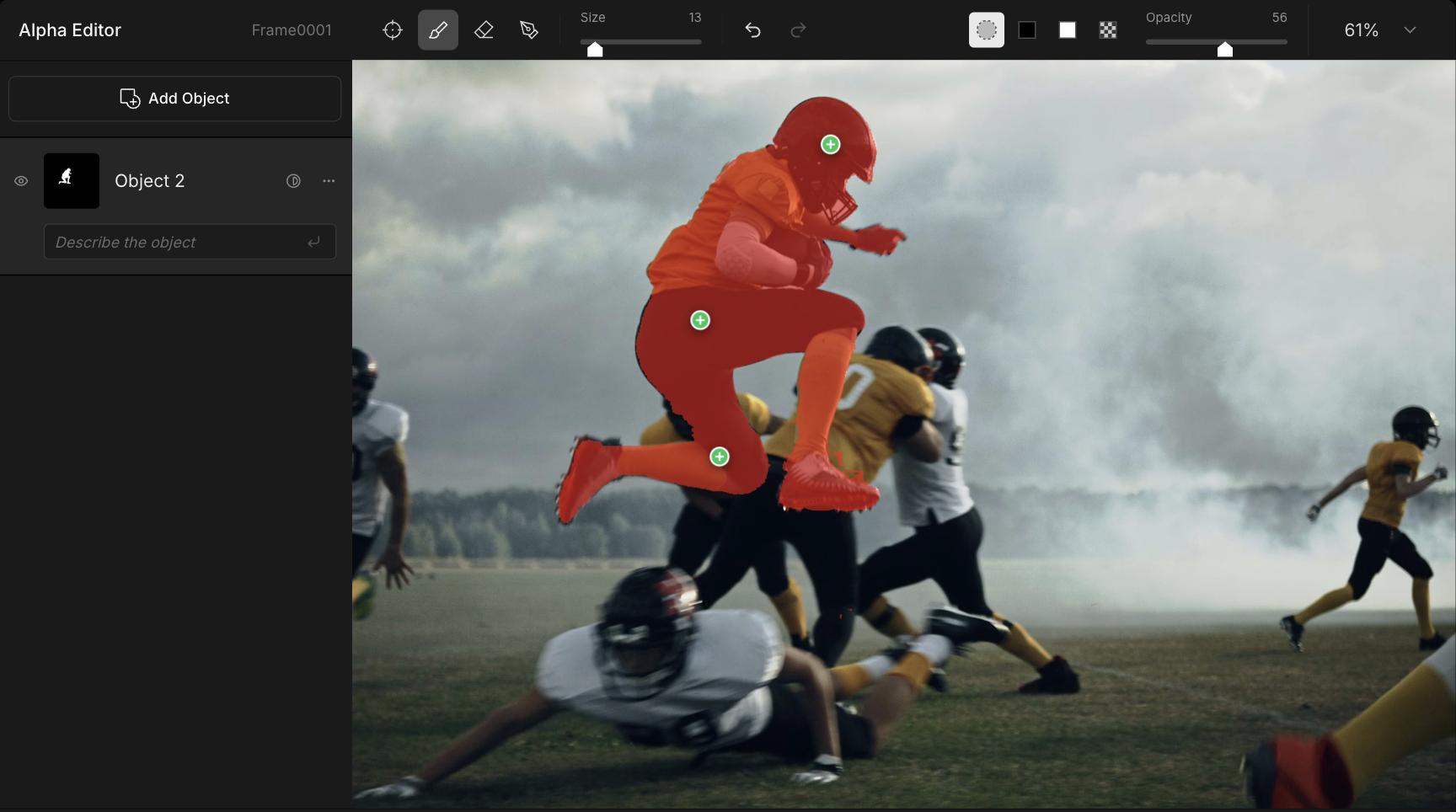
Step 4: Full Extraction
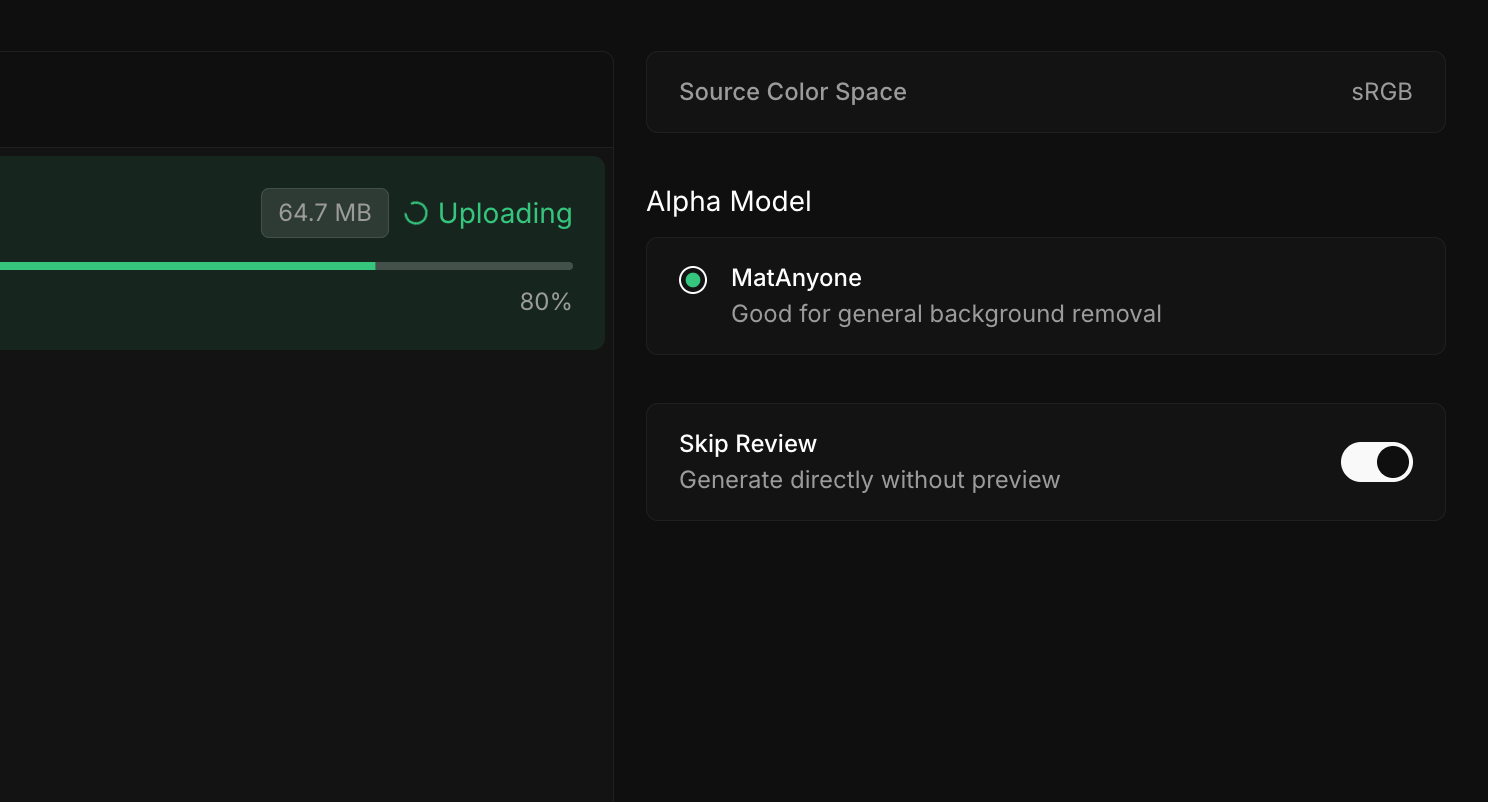
Once you approve the keyframe previews (or skip them), full extraction runs across all frames.Step 5: Download Results
When extraction completes, download your results. You can also bulk download multiple completed results at once.Specifications
These specifications are for Beeble (Cloud). Specifications may be updated
as the platform evolves.
Upload Format
- Image Sequence
- Image
- Video
| Beeble (Cloud app) | |
|---|---|
| File Format | PNG, JPG, JPEG |
| Max Size | 100 MB per file |
| Resolution | Up to 2K (2048 px) - Rejected if larger |
| Max Frames | Up to 2000 frames |
| Color | sRGB for best quality - Other color spaces, such as Log, may degrade quality |
Output Format
Beeble Cloud provides two output formats:- PNG: 8-bit PNG sequences for each output.
- MP4: 8-bit MP4 files for each output.
- PNG
- MP4
| Output | Color Channels | Bit Depth | Color Space | Note |
|---|---|---|---|---|
| Source | RGB (3-ch) | 8-bit | sRGB | |
| Alpha | Grayscale (1-ch) | 8-bit | — | 0.0–1.0 matte |
| Processed | RGBA (4-ch) | 8-bit | sRGB | RGB with transparency applied |