> ## Documentation Index
> Fetch the complete documentation index at: https://docs.beeble.ai/llms.txt
> Use this file to discover all available pages before exploring further.
# Nuke Plugin
> Relight directly inside Nuke with full PBR passes
## Prerequisites
* Nuke 14.1v2+ (tested on Windows and macOS)
* Beeble Nuke Plugin - [**Download HERE**](https://release.beeble.ai/plugins/nuke/latest.zip)
## Install Plugin
1. Download and unzip the Beeble plugin folder
2. Move the Beeble folder to your `.nuke` directory:
* Linux, macOS: `~/.nuke/Beeble/`
* Windows: `C:\Users\\.nuke\Beeble\`
3. Open or create `init.py` in your `.nuke` folder and add:
```python theme={null}
nuke.pluginAddPath('./Beeble')
```
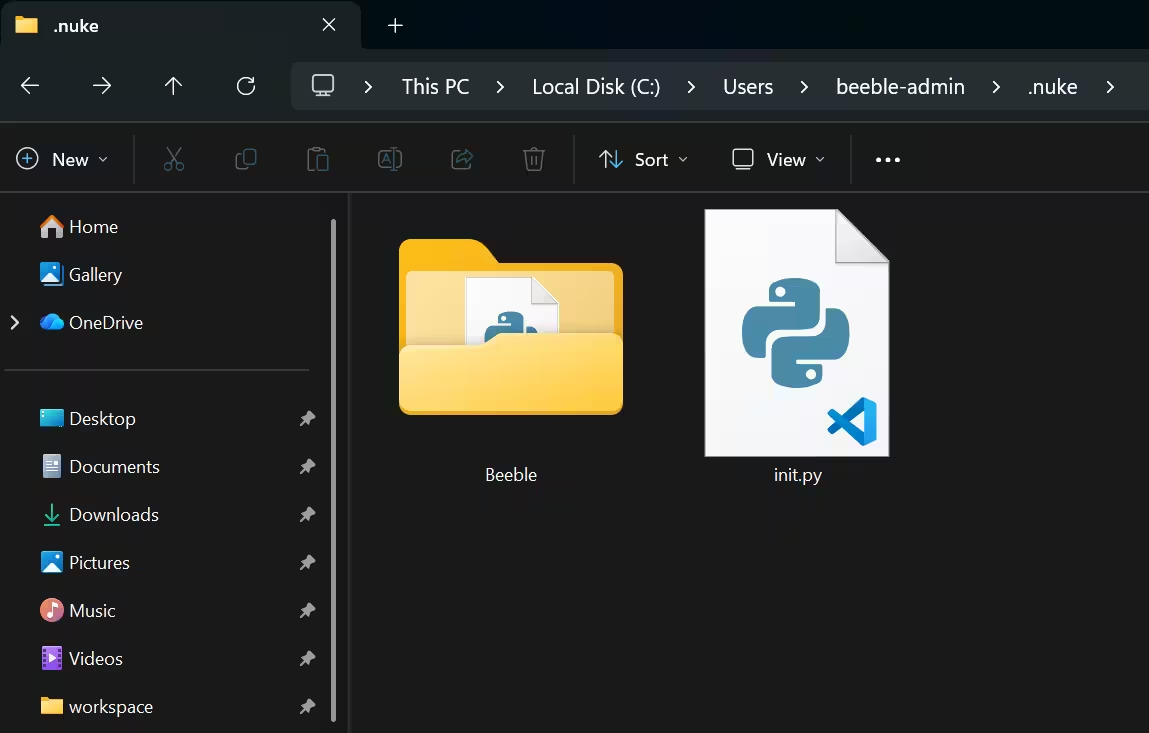
4. Restart Nuke, and you can find Beeble on your toolbar
## Quick Start
### 1. Load PBR Passes
1. Prepare your VFX passes. It should be unzipped folder
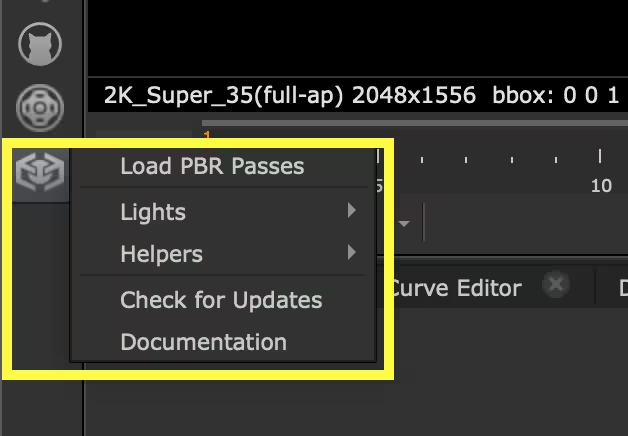
2. In Nuke, go to the left toolbar and click **Beeble > Load PBR Passes**
3. Select the folder that contains your VFX passes. The plugin supports EXR, PNG, and MP4:
* **EXR**: the folder should contain an EXR sequence where multiple passes are packed into each EXR file (e.g.`Frame_000001.exr`).
* **PNG**: the folder should contain subfolders for each pass, and each subfolder holds a PNG image sequence (e.g.`Normal/Normal_000001.png`).
* **MP4**: the folder should include one video per pass, named like `.mp4` (e.g.`Normal.mp4`).
### 2. Add Light
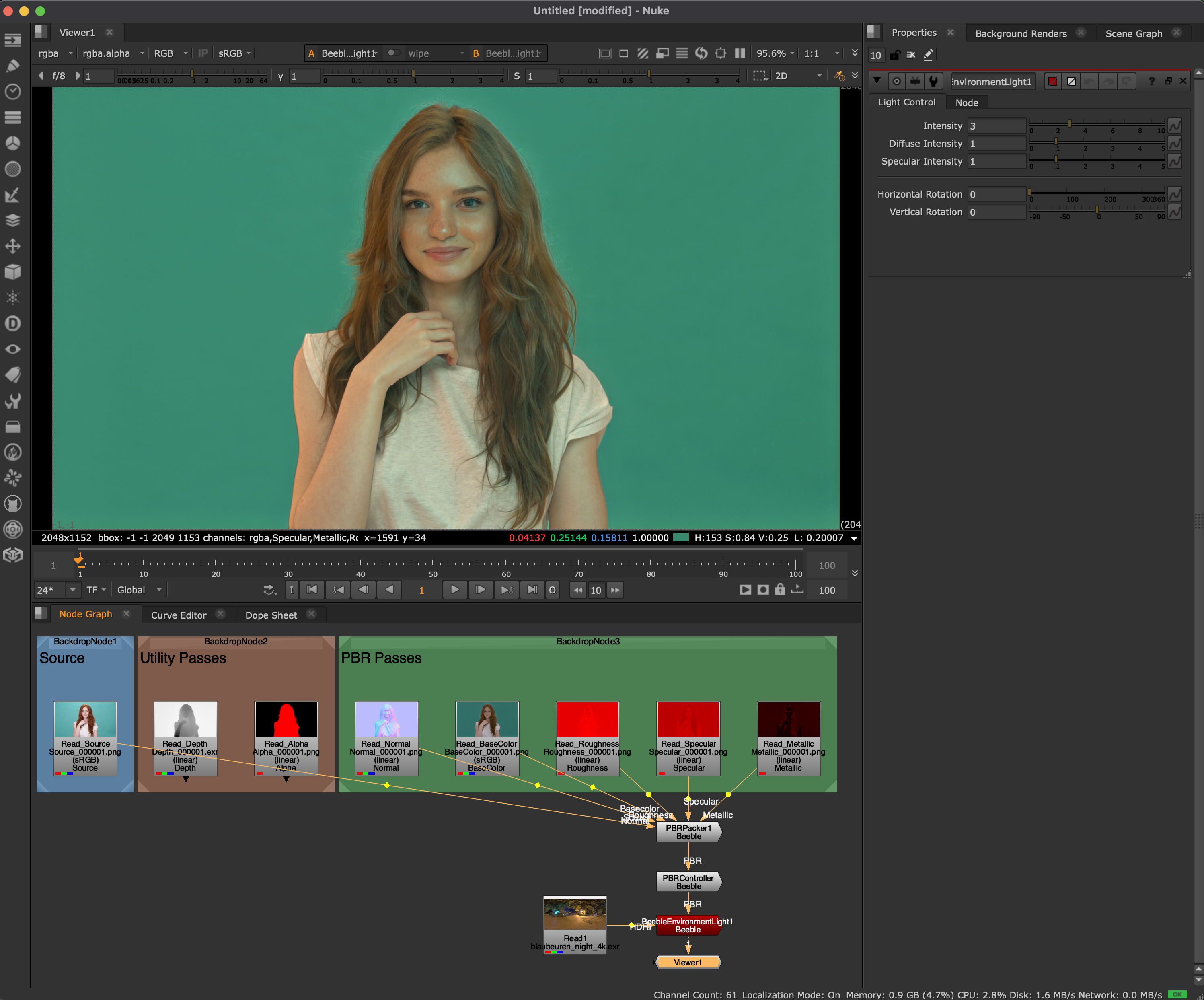
Go to **Beeble > Lights** and select the type of light that you want. Connect the **PBRController** output to the light input.
For the **Environment Light**, load an HDRI file and connect it to the light input.
### 3. Relight
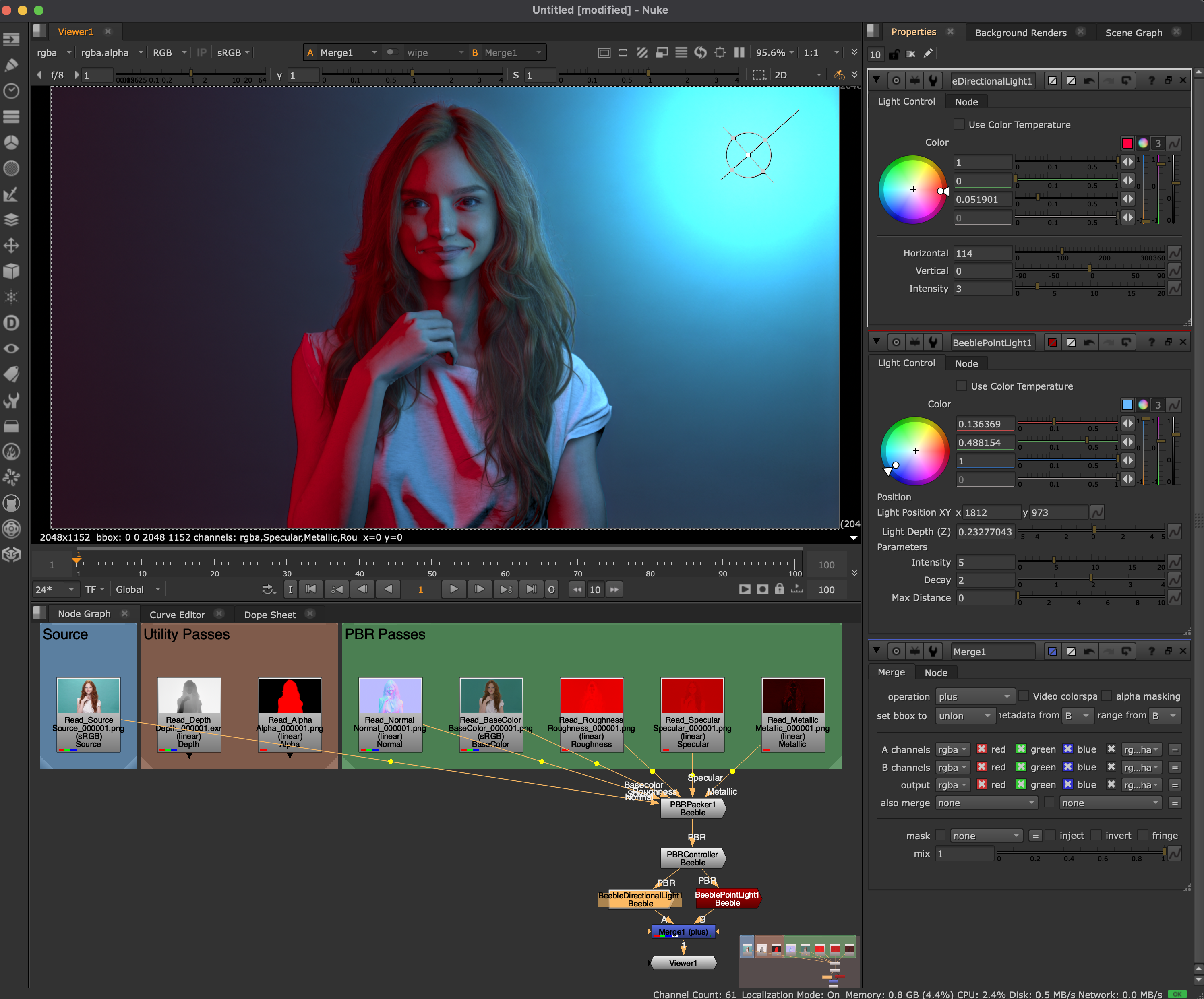
1. Adjust the light properties in the control panel to get your desired look.
2. To add multiple lights, use a Merge node, set to **plus**.
## Node Reference
| Node | Input | Output | Description |
| -------------------------- | ------------------------------------------------------------------- | ----------------- | -------------------------------------------------------- |
| **PBRPacker** | Source, Normal, Basecolor, Roughness, Specular, Metallic (6 inputs) | PBR (multi-layer) | Packs individual passes into a single stream with layers |
| **PBRController** | PBR (multi-layer) | PBR (multi-layer) | Adjusts PBR pass intensities and blending |
| **BeebleDirectionalLight** | PBR (multi-layer) | RGBA | Applies directional lighting to PBR passes |
| **BeeblePointLight** | PBR (multi-layer) | RGBA | Applies point lighting to PBR passes |
| **BeebleEnvironmentLight** | PBR (multi-layer), HDRI (2 inputs) | RGBA | Applies image-based lighting using an HDRI |
**PBR (multi-layer)** refers to a single image stream containing multiple
Nuke layers: Source, Normal, Basecolor, Roughness, Specular, and Metallic.
This format is produced by PBRPacker (for MP4/PNG) or directly available in
EXR sequences generated by Beeble.
## Nodes
### PBR Packer
The PBR Packer combines individual PBR pass inputs into a single multi-layer stream.
Automatically created when using **Load PBR Passes** with MP4/PNG. Not
needed for EXR sequences as passes are already packed into layers.
1. To add manually, go to **Beeble > Helpers > PBR Packer**
2. Connect the 6 inputs: Source, Normal, Basecolor, Roughness, Specular, Metallic
### PBR Controller
The PBR Controller allows you to fine-tune the PBR passes.
PBRController is automatically created when you use **Load PBR Passes**.
1. To add manually, go to **Beeble > Helpers > PBR Controller**
2. Adjust the parameters:
| Parameter | Range | Description |
| ------------------ | ------- | ------------------------------------------ |
| Source Blend | 0-1 | Blend between BaseColor (0) and Source (1) |
| Roughness Exposure | -2 to 2 | Adjust roughness intensity in stops |
| Specular Exposure | -2 to 2 | Adjust specular intensity in stops |
| Metallic Exposure | -2 to 2 | Adjust metallic intensity in stops |
### Directional Light
1. Go to **Beeble > Lights > Beeble Directional Light**
2. Connect the **PBRController** output to the light input
3. Adjust the parameters:
| Parameter | Range | Description |
| --------------- | --------- | ----------------------------------- |
| lightHorizontal | 0 to 360 | Horizontal rotation angle (degrees) |
| lightVertical | -90 to 90 | Vertical rotation angle (degrees) |
| lightColor | - | Color of the light |
| intensity | 0+ | Brightness multiplier (default 1.0) |
### Point Light
1. Go to **Beeble > Lights > Beeble Point Light**
2. Connect the **PBRController** output to the light input
3. Adjust the parameters:
| Parameter | Range | Description |
| ----------------- | ------- | ----------------------------------------------------- |
| Light Position XY | pixels | Position in image |
| Light Depth (Z) | -5 to 5 | Depth along Z-axis |
| lightColor | - | Color of the light |
| intensity | 0+ | Brightness multiplier (default 1.0) |
| decay | 0+ | Distance falloff power (default 2.0 = inverse square) |
| maxDistance | 0+ | Maximum light reach (0 = infinite) |
Double-click the PointLight gizmo and select **TransformHandle** to
interactively position the light in the viewer. Drag to move XY position,
rotate (like a screwdriver) to adjust depth.
### Environment Light
Environment Light applies image-based lighting (IBL) using an HDRI image for realistic ambient illumination.
1. Go to **Beeble > Lights > Beeble Environment Light**
2. Connect the **PBRController** output to the **PBR** input
3. Connect an HDRI image (Read node with .exr or .hdr) to the **HDRI** input
4. Adjust the parameters:
| Parameter | Range | Description |
| ------------------- | --------- | ---------------------------------------------- |
| Intensity | 0+ | Overall brightness multiplier (default 1.0) |
| Diffuse Intensity | 0+ | Diffuse lighting contribution (default 1.0) |
| Specular Intensity | 0+ | Specular/reflection contribution (default 1.0) |
| Horizontal Rotation | 0 to 360 | Rotate HDRI horizontally (degrees) |
| Vertical Rotation | -90 to 90 | Rotate HDRI vertically (degrees) |
Combine Environment Light with Directional or Point lights using a Merge
node for more complex lighting setups.
 ## Quick Start
### 1. Load PBR Passes
1. Prepare your VFX passes. It should be unzipped folder
2. In Nuke, go to the left toolbar and click **Beeble > Load PBR Passes**
3. Select the folder that contains your VFX passes. The plugin supports EXR, PNG, and MP4:
* **EXR**: the folder should contain an EXR sequence where multiple passes are packed into each EXR file (e.g.`Frame_000001.exr`).
## Quick Start
### 1. Load PBR Passes
1. Prepare your VFX passes. It should be unzipped folder
2. In Nuke, go to the left toolbar and click **Beeble > Load PBR Passes**
3. Select the folder that contains your VFX passes. The plugin supports EXR, PNG, and MP4:
* **EXR**: the folder should contain an EXR sequence where multiple passes are packed into each EXR file (e.g.`Frame_000001.exr`). 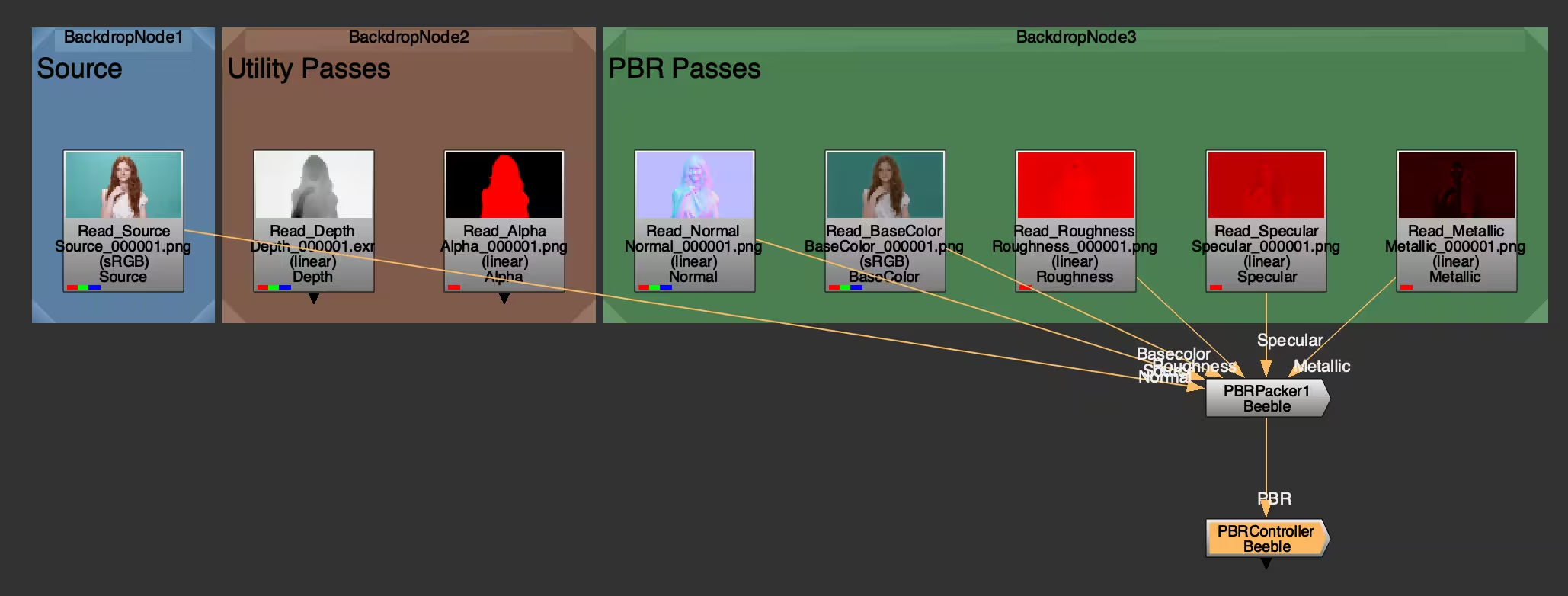 * **PNG**: the folder should contain subfolders for each pass, and each subfolder holds a PNG image sequence (e.g.`Normal/Normal_000001.png`).
* **MP4**: the folder should include one video per pass, named like `
* **PNG**: the folder should contain subfolders for each pass, and each subfolder holds a PNG image sequence (e.g.`Normal/Normal_000001.png`).
* **MP4**: the folder should include one video per pass, named like `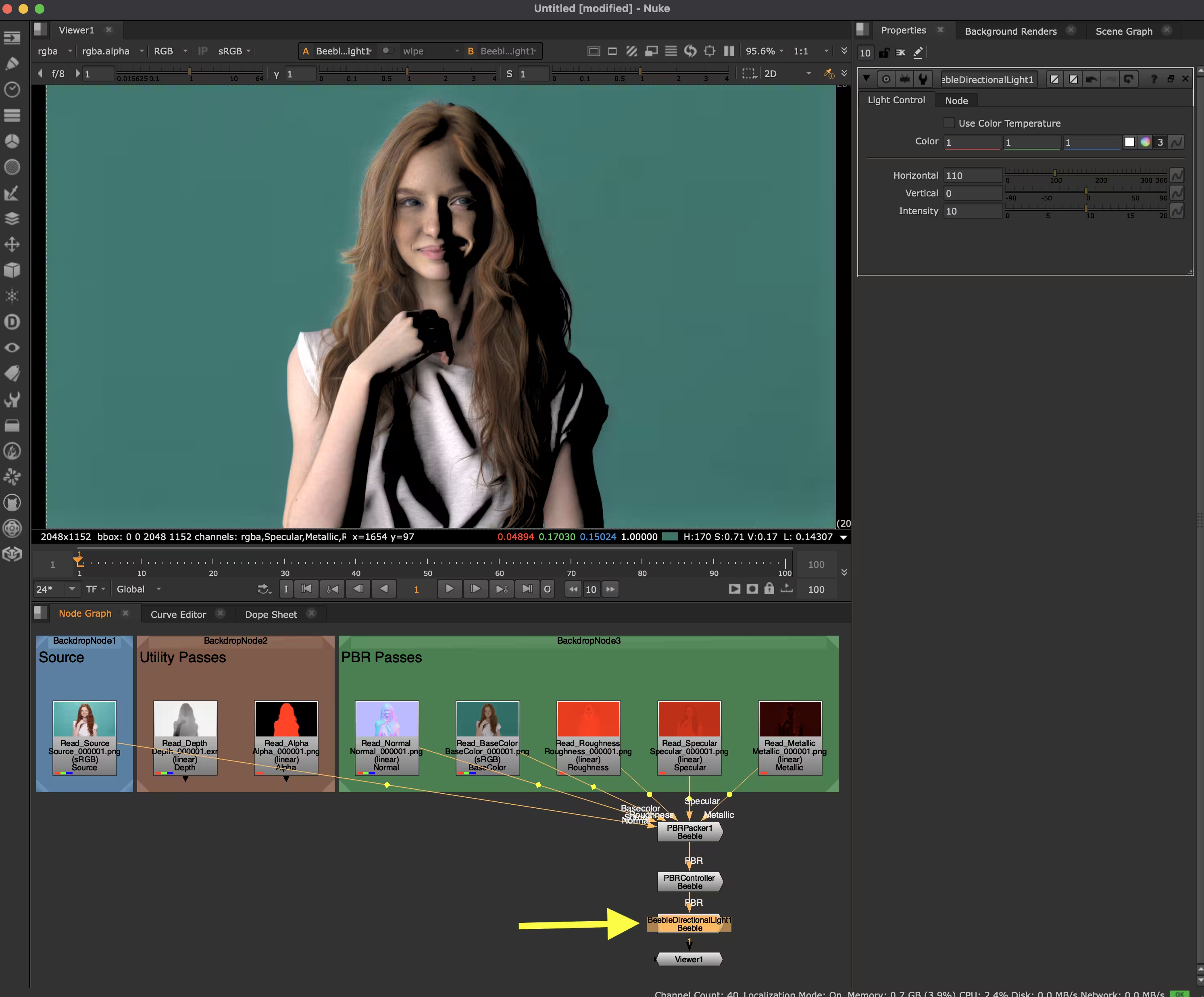 For the **Environment Light**, load an HDRI file and connect it to the light input.
  ### 3. Relight
1. Adjust the light properties in the control panel to get your desired look.
### 3. Relight
1. Adjust the light properties in the control panel to get your desired look. 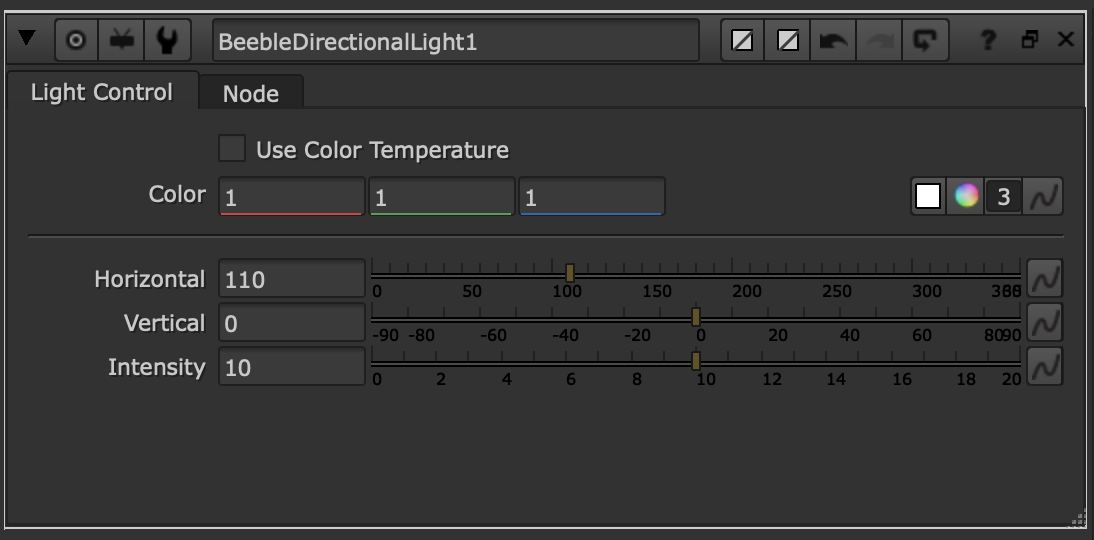 2. To add multiple lights, use a Merge node, set to **plus**.
  ## Node Reference
| Node | Input | Output | Description |
| -------------------------- | ------------------------------------------------------------------- | ----------------- | -------------------------------------------------------- |
| **PBRPacker** | Source, Normal, Basecolor, Roughness, Specular, Metallic (6 inputs) | PBR (multi-layer) | Packs individual passes into a single stream with layers |
| **PBRController** | PBR (multi-layer) | PBR (multi-layer) | Adjusts PBR pass intensities and blending |
| **BeebleDirectionalLight** | PBR (multi-layer) | RGBA | Applies directional lighting to PBR passes |
| **BeeblePointLight** | PBR (multi-layer) | RGBA | Applies point lighting to PBR passes |
| **BeebleEnvironmentLight** | PBR (multi-layer), HDRI (2 inputs) | RGBA | Applies image-based lighting using an HDRI |
## Node Reference
| Node | Input | Output | Description |
| -------------------------- | ------------------------------------------------------------------- | ----------------- | -------------------------------------------------------- |
| **PBRPacker** | Source, Normal, Basecolor, Roughness, Specular, Metallic (6 inputs) | PBR (multi-layer) | Packs individual passes into a single stream with layers |
| **PBRController** | PBR (multi-layer) | PBR (multi-layer) | Adjusts PBR pass intensities and blending |
| **BeebleDirectionalLight** | PBR (multi-layer) | RGBA | Applies directional lighting to PBR passes |
| **BeeblePointLight** | PBR (multi-layer) | RGBA | Applies point lighting to PBR passes |
| **BeebleEnvironmentLight** | PBR (multi-layer), HDRI (2 inputs) | RGBA | Applies image-based lighting using an HDRI |