> ## Documentation Index
> Fetch the complete documentation index at: https://docs.beeble.ai/llms.txt
> Use this file to discover all available pages before exploring further.
# Beeble Camera App
> iPhone App that brings camera tracking to Beeble
**Beeble Camera App** currently works exclusively with the Beeble Cloud App.
## What is Beeble Camera?
Beeble Camera is an **iPhone App that brings camera tracking to Beeble.** It uses **Apple's LiDAR and ARKit** to track your device's movement while filming. Your footage is anchored to real-world space and sent directly to the **Beeble platform** for AI-powered VFX processing.
With Beeble Camera, your iPhone becomes a mini Hollywood studio:
* Shoot with your iPhone and get real-time camera tracking
* Process instantly in Beeble Web with AI-powered roto & VFX Passes
* Create virtual productions in minutes using 3D Relight and Blender
## Step-by-Step Guide
### 1. Installation
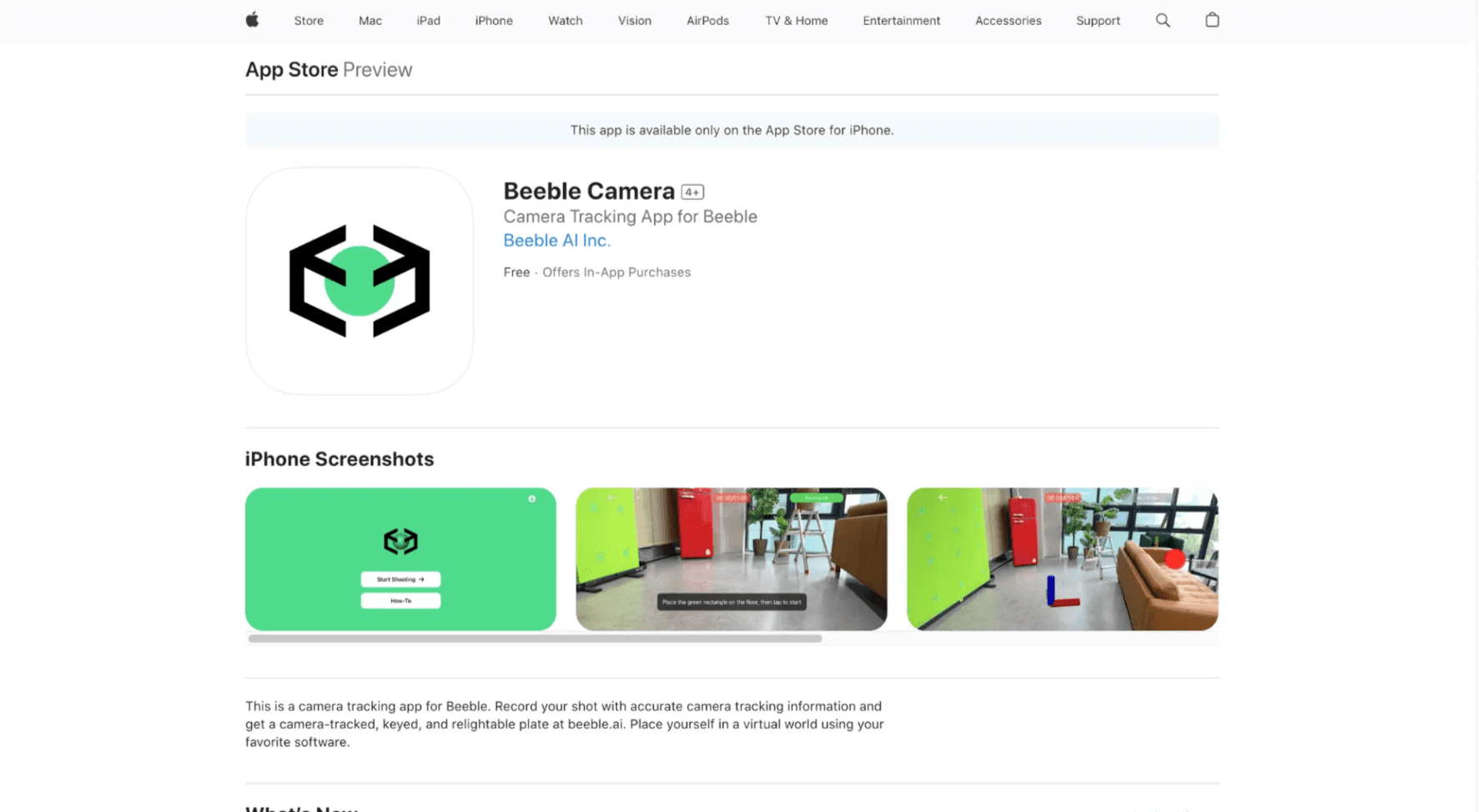
Download **Beeble Camera** on the App Store.
### 2. How to Use
#### 2.1 Setting up your space
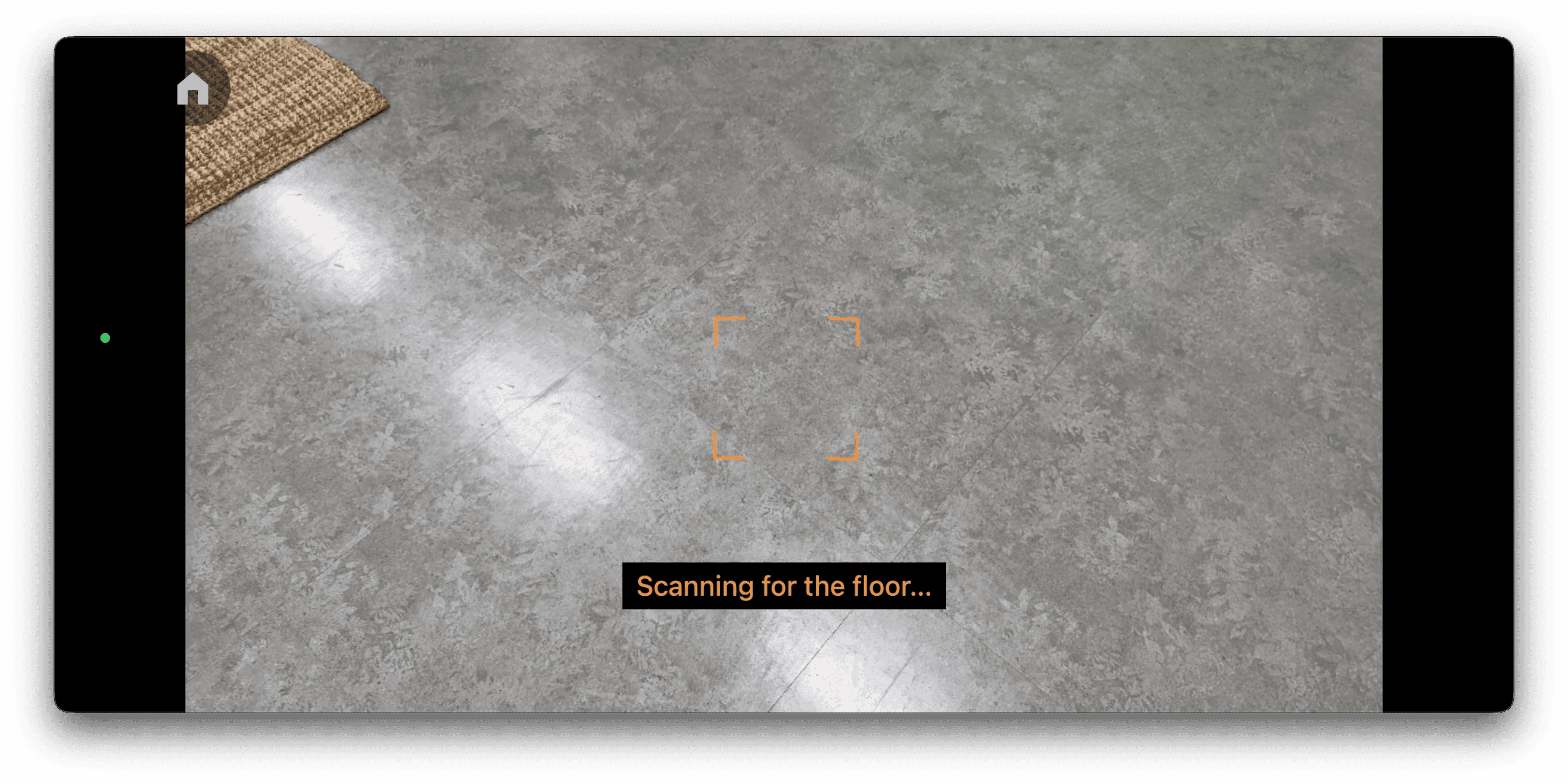
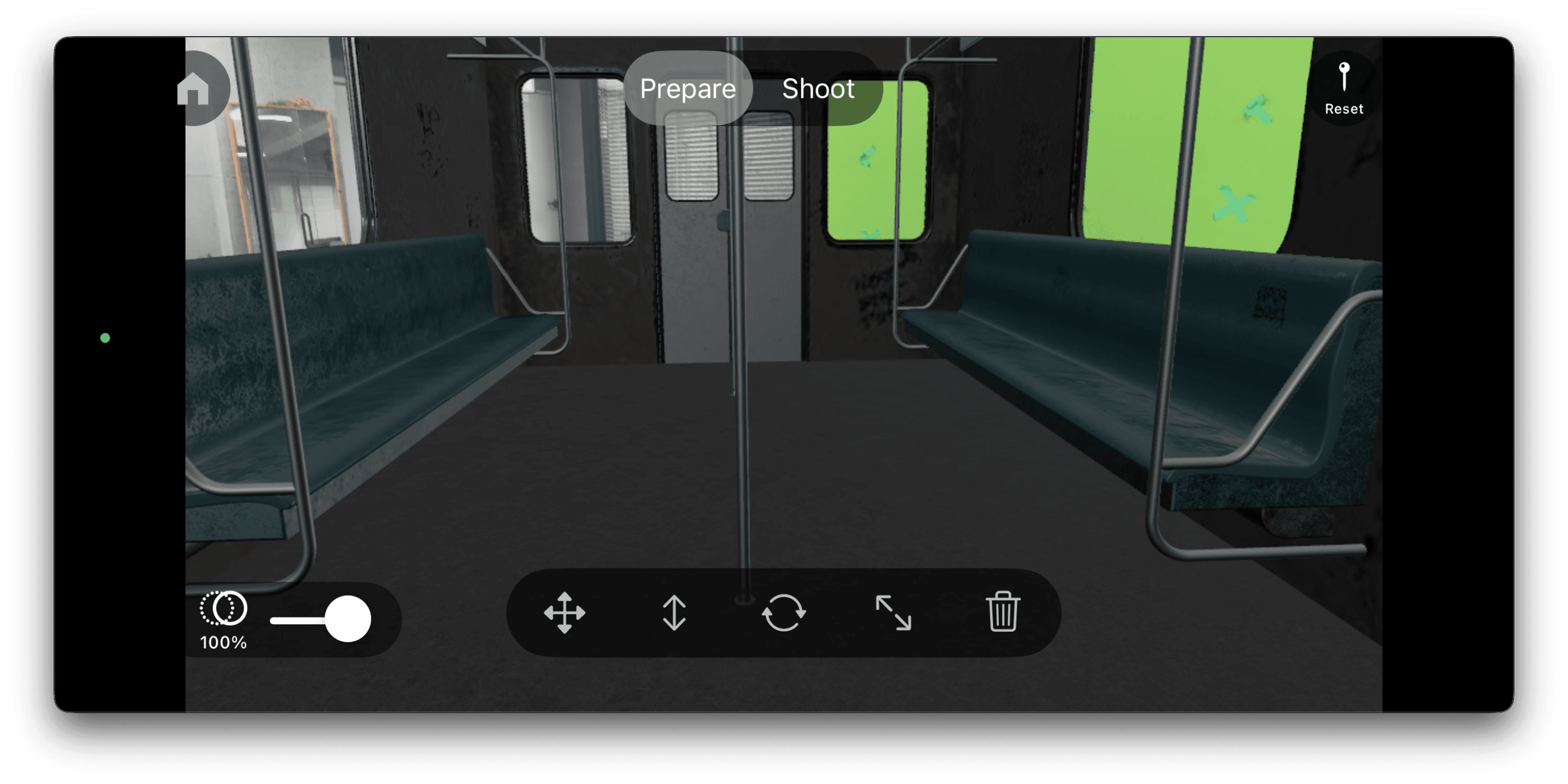
1. **Scan the Area**: Move your device to scan your space. ARKit will automatically detect surfaces and spatial features. When it identifies the **floor**, a square shaped focus indicator will appear.
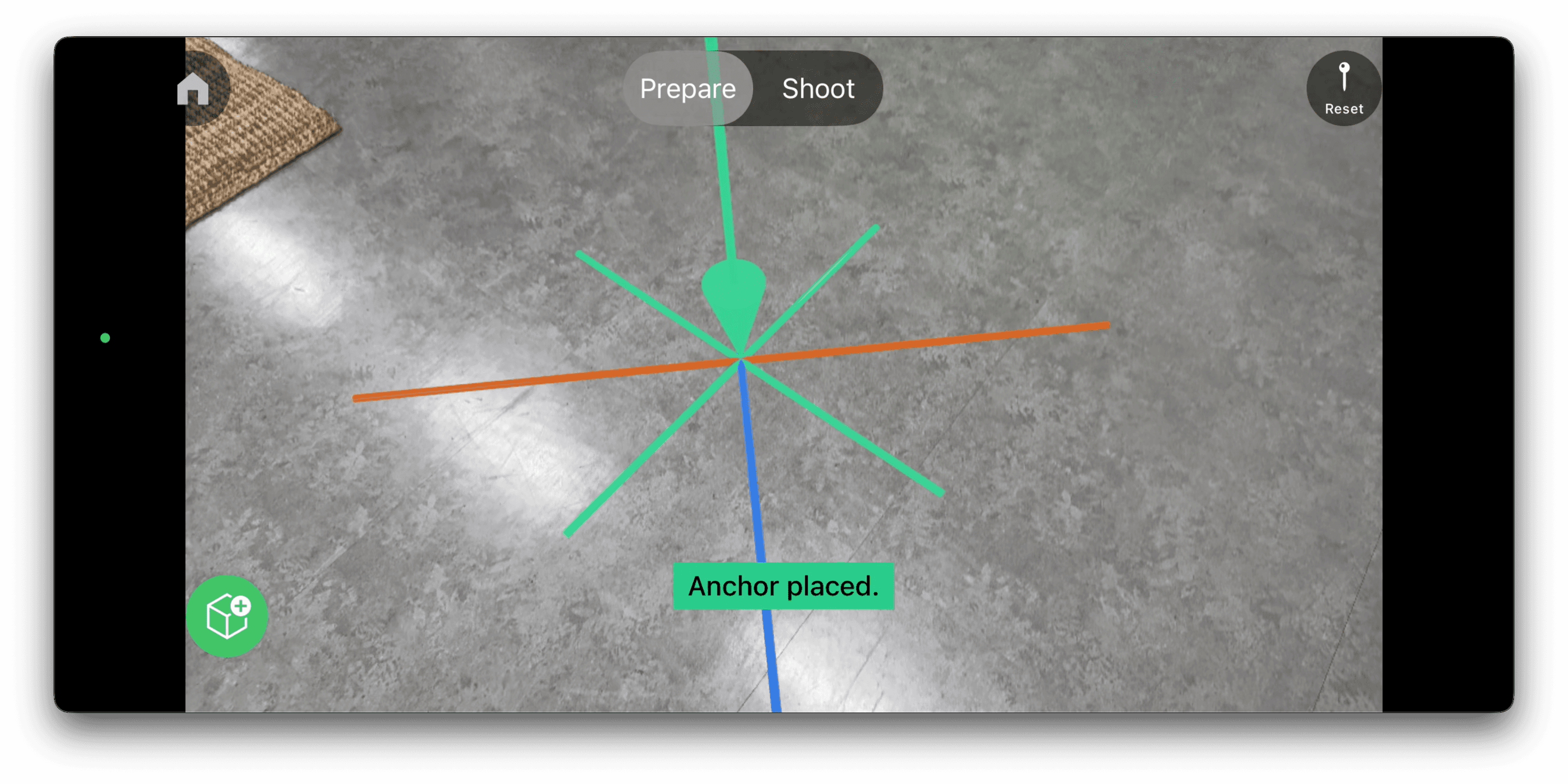
2. **Set Origin**: Tap the floor grid to set your origin. This anchors the tracked scene to your space and ensures consistent camera tracking.
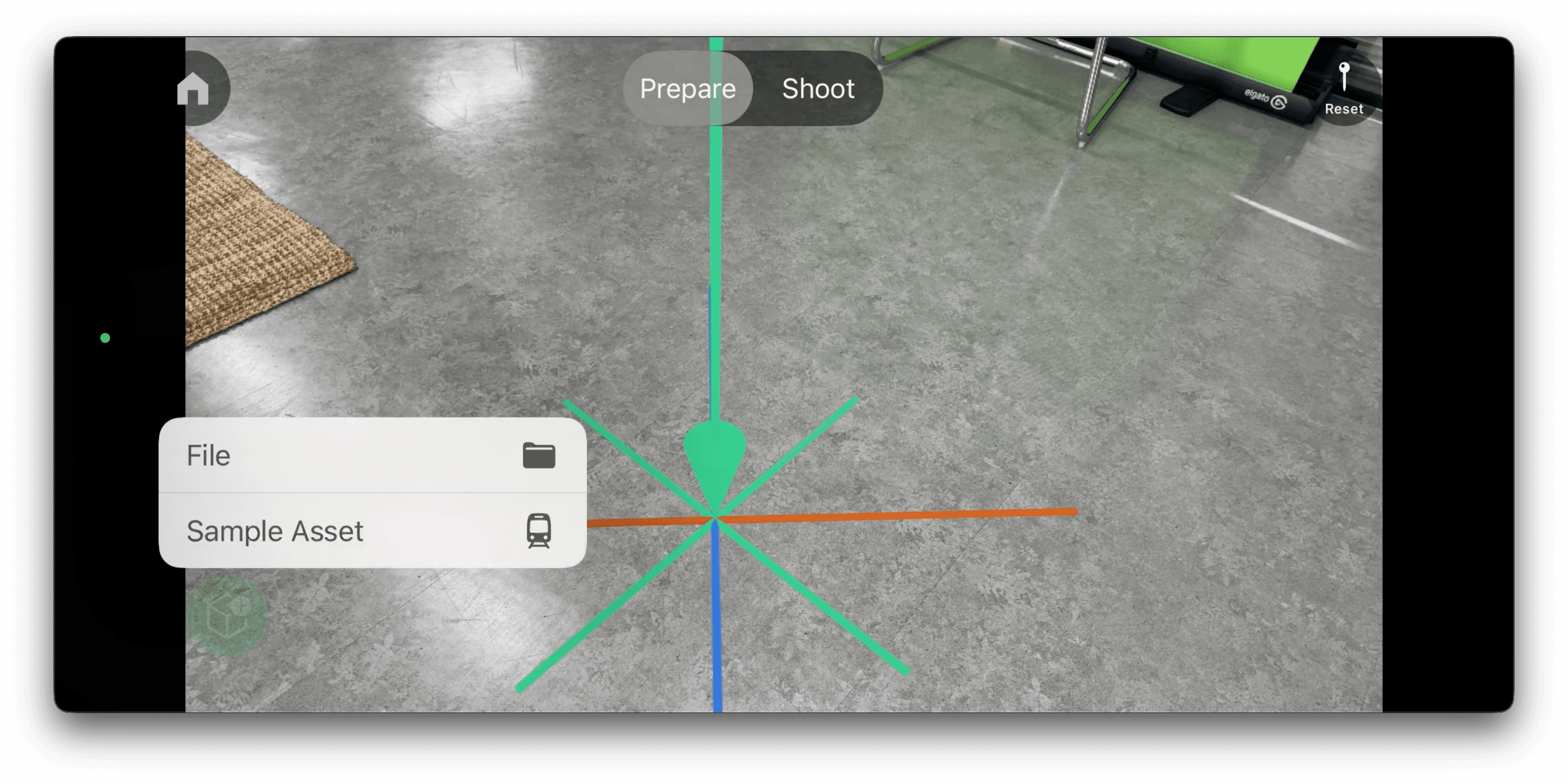
3. **(Optional) Place 3D Model**: Place a `.usdz` file into your scene as a visual reference. Scale, move, and rotate the object freely.
#### 2.2 Start Recording
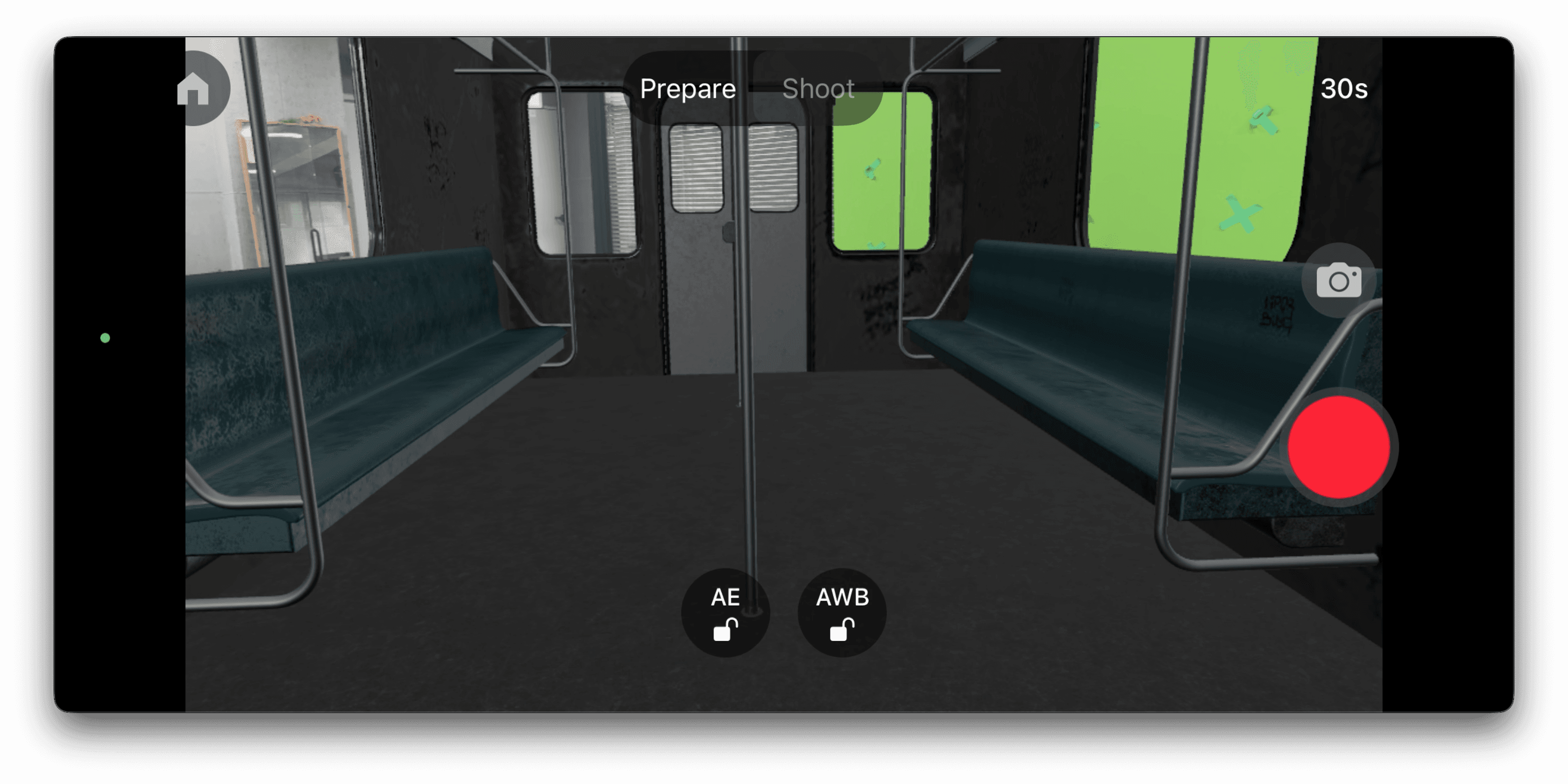
Once setup is complete, switch to **Shoot mode** and tap **Record**. While recording, your **iPhone's position and orientation, and depth data** are tracked in real time using LiDAR and ARKit.
> 💡 Tips for better results
>
> * **Wipe your lens** before shooting to ensure clear capture
> * Use a **gimbal** to keep the camera as stable as possible
> * Shoot in areas with **even lighting and clean background**
#### 2.3 Upload and Process
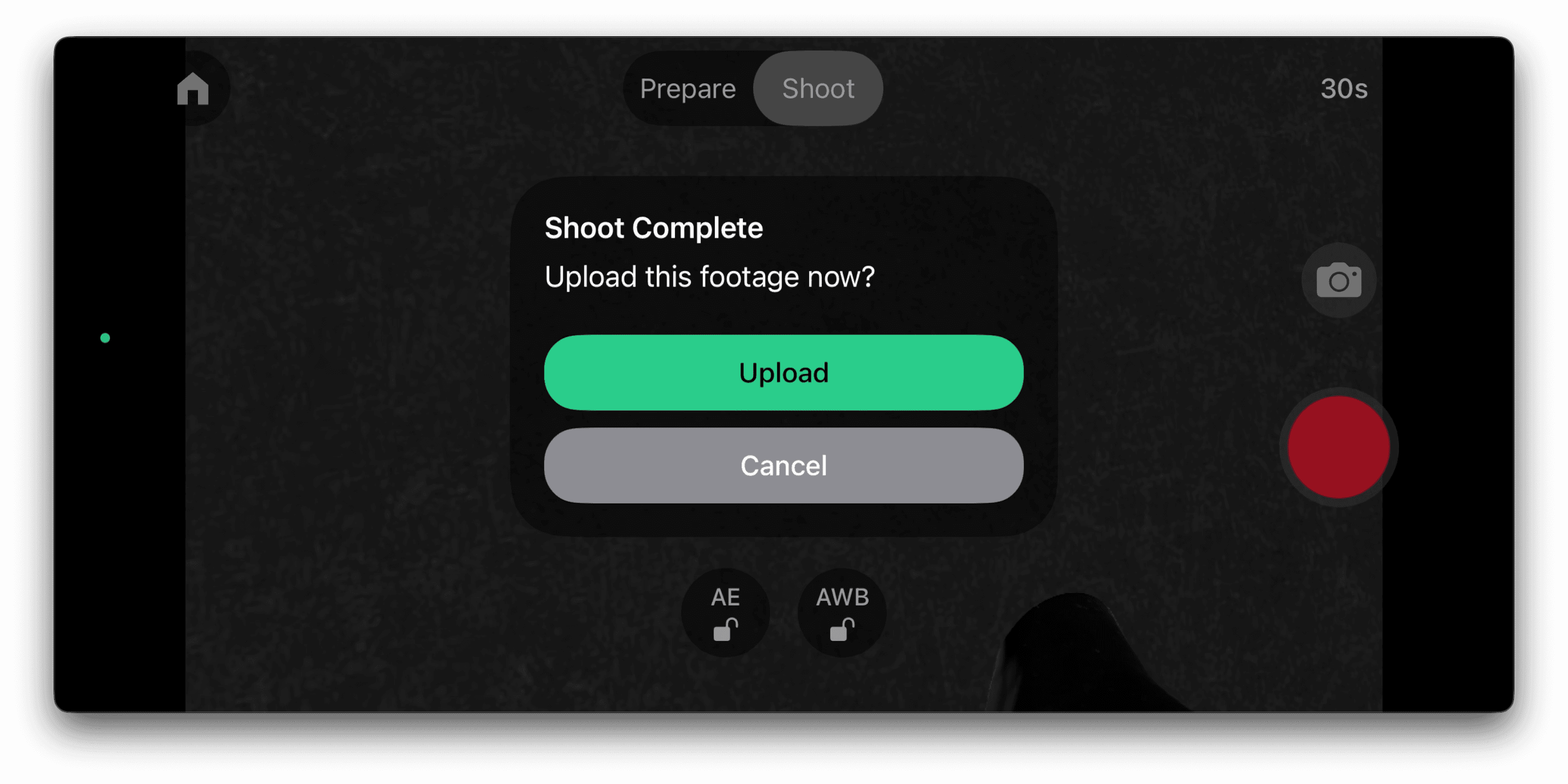
After recording, simply tap **Upload** to send your footage to the Beeble Web.
Once the upload is complete, head over to [app.beeble.ai](https://app.beeble.ai).
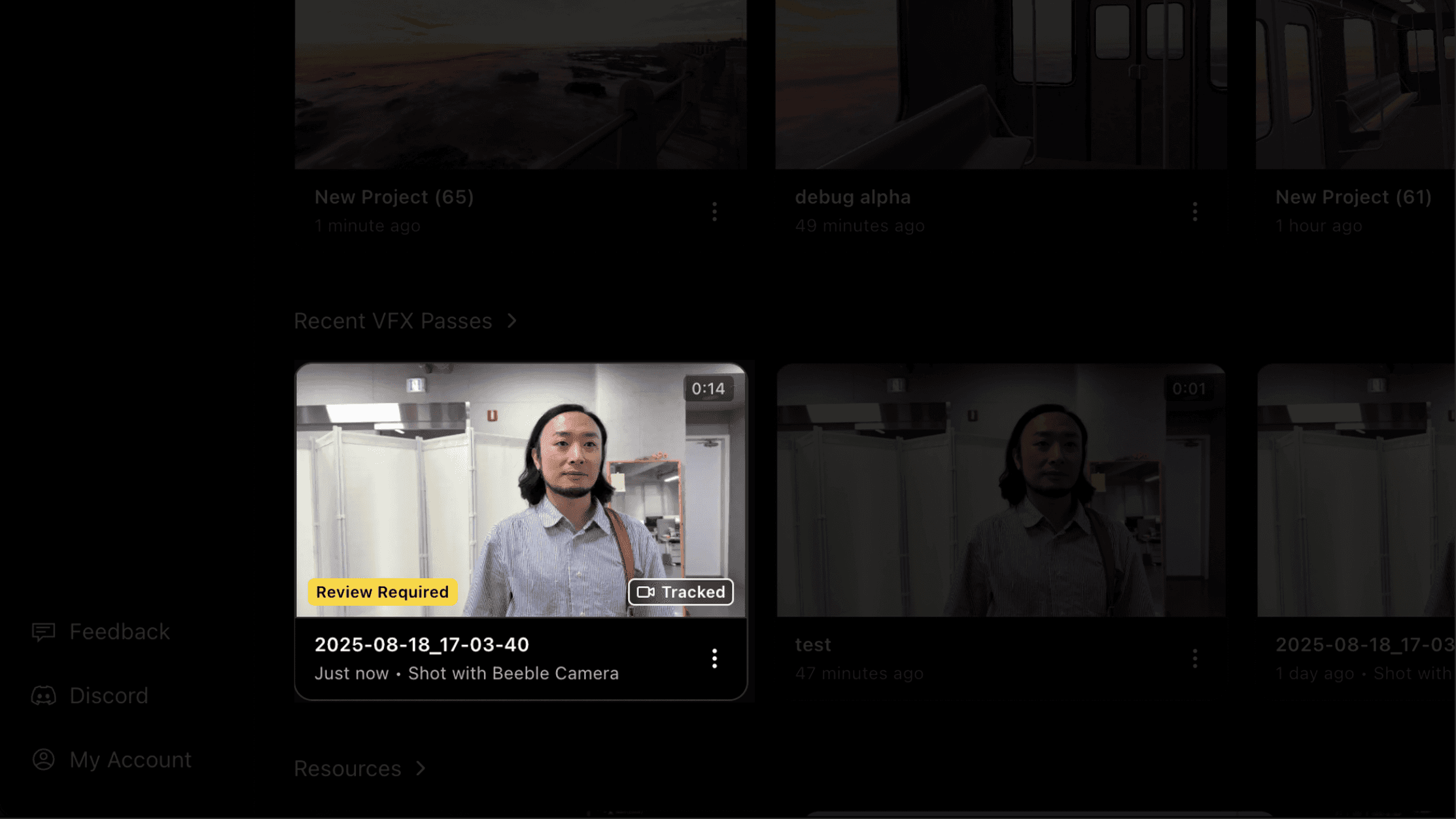
There, you can process your video into a **camera-tracked, rotoscoped, relightable VFX pass** with our AI.
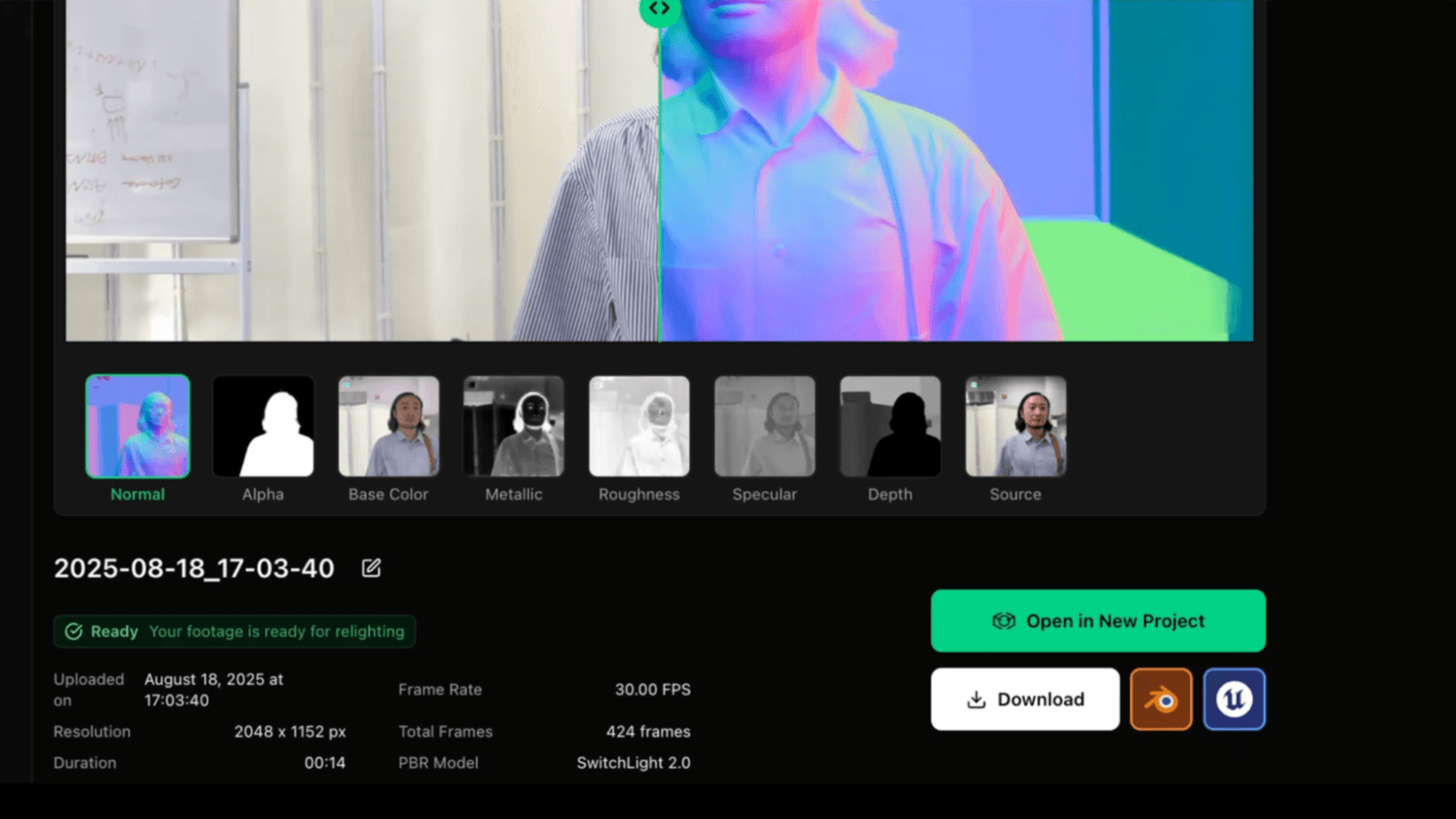
Your processed footage can be opened directly in the **Beeble Studio** or exported to **DCC tools like Blender** for further post-production.
## Compositing in 3D Relight
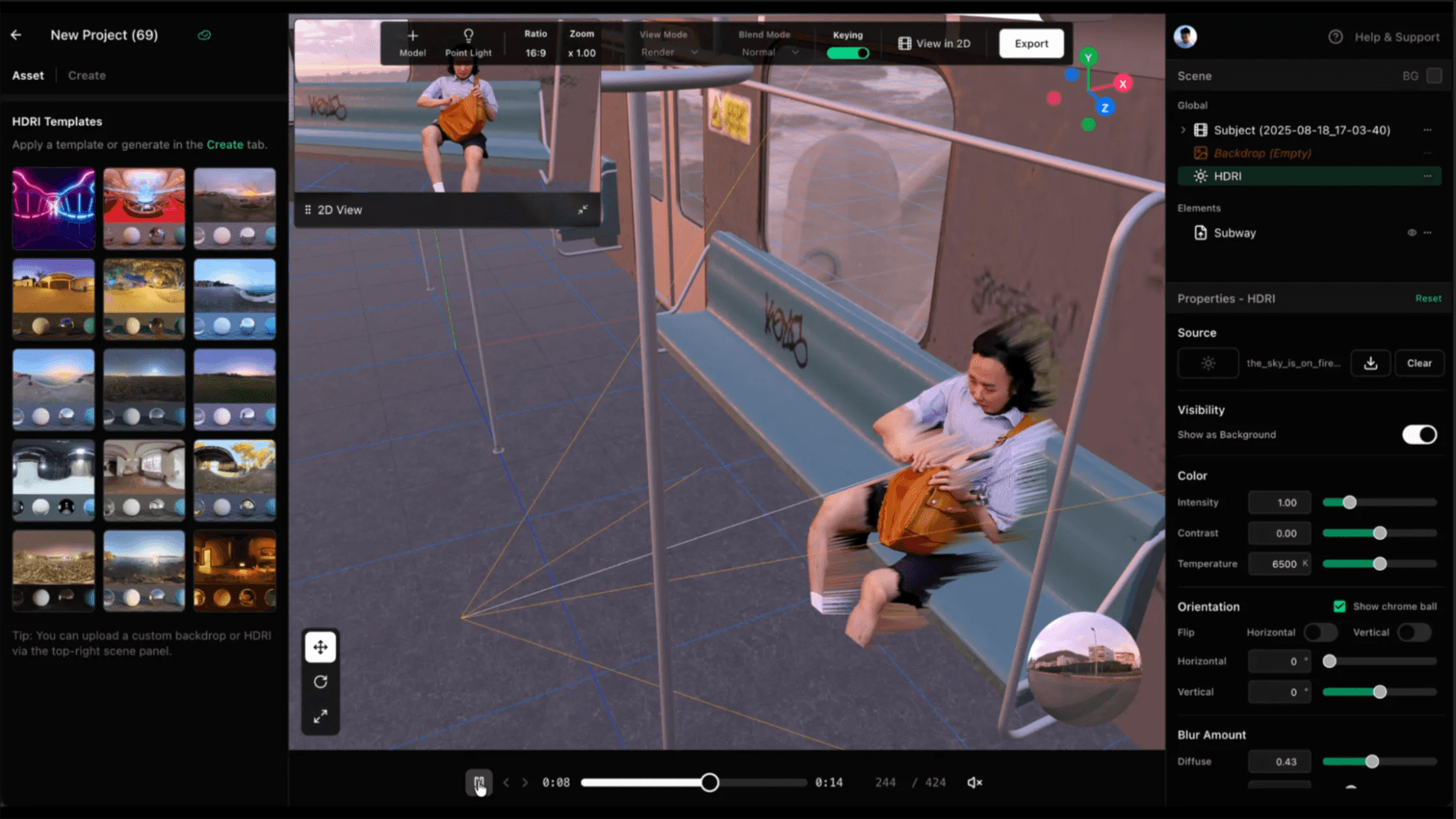
Let's create a new project for a quick composite.
To load the same 3D model you used during filming:
1. Convert it to `.glb` using **Blender or other software**
2. Upload the `.glb` file to 3D Relight
Since we have the metadata of how the 3D scene was placed, this will place the 3D model just like it was shot.
## Compositing in Blender
For advanced compositing, bring your footage into Blender using the **Beeble Blender add-on**. The camera tracking data will be included as well.
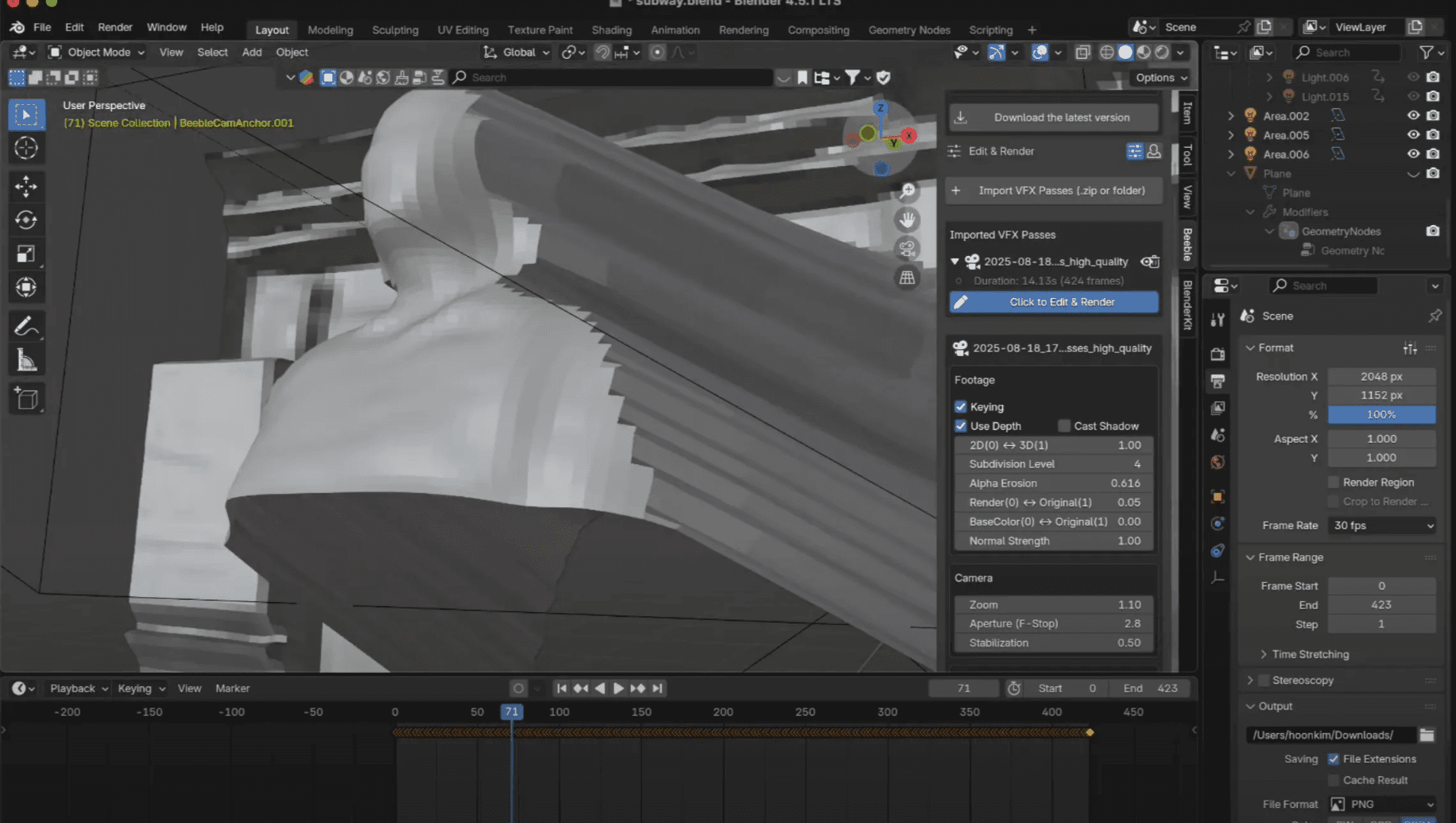
You can check out the add-on and instructions here: [https://app.beeble.ai/plugins](https://app.beeble.ai/plugins)
## Start Creating Now!
With Beeble Camera and Beeble Web, virtual production has never been this simple. Download Beeble Camera today, and start creating. Visit [beeble.ai](https://beeble.ai) to get started.