> ## Documentation Index
> Fetch the complete documentation index at: https://docs.beeble.ai/llms.txt
> Use this file to discover all available pages before exploring further.
# Frequently Asked Questions
> Common questions about Beeble
## General
**SwitchX** is our new generative video-to-video model. It lets you modify lighting, backgrounds, props, and more, while keeping your original subject completely intact.
Because SwitchX is guided directly by your source footage at the pixel level, it ensures consistent identity, preserved details, and highly controllable results. Whether you need to relight a scene, selectively modify specific elements with a mask, or completely reimagine the artistic style of your entire shot — SwitchX allows you to switch anything, and keep what matters.
SwitchX is currently available only on Beeble (Cloud app). It is not available in Beeble Studio.
[Learn more about SwitchX →](/beeble/switchx)
**VFX Pass Generator** uses our foundation model, **SwitchLight 3.0**, and SOTA AI models to convert your footage into VFX-ready assets by generating:
* **PBR Maps:** Normal, Base color, Metallic, Roughness, Specular for relighting
* **Alpha:** foreground matte for background replacement
* **Depth Map:** For compositing and 3D integration
Your image or video becomes a **rotoscoped, relightable 2.5D asset**, ready for use in 3D Relight, Nuke, Blender, Unreal or other 3D tools for further VFX work.
**Background Remover** is a standalone AI-powered alpha extraction tool. It removes backgrounds from your images, videos, and image sequences, producing clean foreground mattes ready for compositing and VFX work.
* Upload an image, video, or image sequence
* Preview and refine alpha on sample frames before full extraction
* Download results as RGBA MOV, PNG sequences, or alpha MP4
Background Remover is available only on Beeble (Cloud app) for Creator and Professional plans. It is not available in Beeble Studio.
[Learn more about Background Remover →](/beeble/background-remover)
**3D Relight** is a real-time 3D relighting editor designed for fast, AI-powered VFX compositing. With it, you can:
* **One click import** your VFX passes directly into 3D editor
* **Relight footage** with physically accurate lights and image-based lighting
All without needing traditional 3D software.
**Yes.** Beeble's proprietary models—such as **SwitchLight**—are trained only on ethically sourced, agreement-based datasets. We never use scraped or unauthorized data.
When open-source models are included, we choose them carefully—only those with published research papers that disclose their training data and carry valid commercial-use licenses.
**Beeble (Cloud app)** runs in your browser with cloud-based processing, while **Beeble Studio (Desktop app)** runs locally on your workstation with NVIDIA GPU.
| Feature | Beeble (Cloud app) | Beeble Studio (Desktop app) |
| --------------------------------- | ------------------------- | --------------------------- |
| **SwitchX** | O | X (Cloud-exclusive) |
| **Background Remover** | O (Creator/Professional) | X (Cloud-exclusive) |
| **Processing** | Cloud servers | Your local GPU |
| **Privacy** | Uploads footage | Keeps everything local |
| **Resolution** | Up to 2K | Up to 4K |
| **Duration (VFX Pass Generator)** | Up to 1 minute | Up to 1 hour |
| **Duration (SwitchX)** | 240 frames per generation | N/A (Cloud-exclusive) |
| **Credits** | Uses credits | Unlimited local rendering |
[See full comparison →](/help/beeble-vs-beeble-studio)
***
## Beeble (Cloud app)
Credits are the cost unit used to access AI-powered features on Beeble. Each feature consumes credits as follows:
* **SwitchX**
* **SwitchX (720p):** 3 credits per 30 frames
* **SwitchX (1080p):** 10 credits per 30 frames
* **Reference Image:** 2 credits (Flux-2-Pro) or 4 credits (Nano-Banana-Pro) per image
* **VFX Pass Generator**
* **VFX Pass Generator:** 3 credits per 1-second video or 1 image
* **Background Remover**
* **MatAnyone** (default): 1 credit per 30 frames of video, or 1 credit per image
* **CorridorKey** (green screen): 2 credits per 30 frames of video, or 2 credits per image
For VFX Pass Generator, credits are deducted based on duration (per second), regardless of the frame rate. For Background Remover and SwitchX, credits are calculated in steps of 30 frames — so a 60fps clip costs twice as much as a 30fps clip of the same wall-clock duration.
Beeble Studio, our desktop app does not consume credits for VFX Pass Generator.
Yes. For **VFX Pass Generator**, you can preview the VFX passes on sample frames before any credits are used. For **Background Remover**, you can preview alpha mattes on sample frames and refine them before committing to full extraction. If you like what you see, you can proceed—credits will only be deducted at that point. This preview-first workflow sets Beeble apart from most generative AI tools, which charge credits upfront.
Yes, you can upgrade anytime via your account page. Upgrades takes effect immediately, and a **prorated charge** may apply for the remaining days in your billing cycle.
Switching between monthly and yearly billing is not currently supported.
Yes. If you are on the **Professional** plan, you can downgrade to **Creator** directly — no need to cancel and resubscribe. Select Creator on the [plans page](https://app.beeble.ai/plans), or use **Change Plan** on your account page.
* The downgrade takes effect at the **end of your current billing period** — you keep Professional until then, and no refund is issued for the remaining period.
* Your billing cycle stays the same: monthly plans switch to monthly Creator, yearly plans to yearly Creator.
* Changed your mind? Until the downgrade takes effect, click **Keep Professional** on your account page to cancel it and stay on Professional.
To move to the free Starter plan, cancel your subscription instead — you keep access until the end of your current billing cycle.
Yes. You can cancel your subscription at any time. After cancellation:
* You won't be charged again
* You will retain access to all features and remaining credits until the end of your current billing cycle
To cancel, visit your account page.
{" "}
No. Unused credits and monthly benefits **do not roll over** to the next
billing cycle.
{" "}
If you run out of your subscription credits before renewal, you can buy
**one-time credits** [here](https://app.beeble.ai/account?buy-credits).
**Paid Users:** All uploaded and created content remains private and fully owned by you. Beeble only accesses it as necessary to provide services.
**Free-Tier Users:** You retain full ownership of your uploaded and generated content. While Beeble may use this content to improve services, we do not claim ownership.
***
## Beeble Studio (Desktop app)
**Beeble Studio** is our desktop application that runs entirely on your local hardware. It provides:
* Local VFX Pass Generation: Process up to 4K and 1 hour using your NVIDIA GPU
* Complete Privacy: Your files never leave your machine
[Learn more about Beeble Studio →](/beeble-studio/overview)
**Beeble Studio operates completely separately** from the cloud app.
* All processing happens locally on your GPU
* Projects are not synced between platforms
* VFX passes remain separate and stored only on your local machine
* No cloud integration for project files or assets
Think of them as two independent applications that share the same login credentials but maintain separate workspaces.
No. All footage and processing remain on the local device.
{" "}
No. Beeble Studio does not upload user footage or use any customer content for
model training.
Yes! Beeble Studio plans come with a **7-day free trial**.
{" "}
No. While all footage processing is local, an internet connection is needed
for operational purposes such as authentication.
{" "}
Each Beeble Studio plan includes **one active seat**, which allows you to use
the software on a single computer at a time.
***
## Team Plan (Beeble Cloud Only)
The Team Plan is designed for teams that need centralized billing, a shared pool of credits, and simplified seat management.
* **Central Billing:** Manage all team subscriptions and purchases through a single, unified payment method and invoice.
* **Seat Management:** Invite or remove team members, adjust your total seat count, and assign Admin roles to control access.
* **Shared Pool of Credits:** When your team workspace is active, all feature deductions come from a shared pool of credits. Admins can check usage stats for the whole team.
* **Supported Features:** Team plans currently support Canvas, SwitchX, Background Remover, and VFX Passes.
* **Collaboration:** For now, projects and assets remain private to the individual member who created them. More advanced collaboration features are coming soon.
3D Relight is currently restricted to personal use and is not available in a team workspace.
Credits are the unit used to access AI features on Beeble. Team plans draw from a **shared team pool** of credits.
**Costs at a glance:**
* **SwitchX:** 3 credits (720p) or 10 credits (1080p) per 30 frames. Reference images cost 2 or 4 credits.
* **VFX Passes:** 3 credits per 1-second video or 1 image.
* **Background Remover:** 1 credit (MatAnyone) or 2 credits (CorridorKey) per 30 frames or 1 image.
* **Other models:** Costs vary by model — see the [Credit Policy](/help/credit-policy).
**Usage & expiry:**
* **Subscription credits** are consumed first and reset at the start of every billing cycle.
* **One-time credits** can be purchased anytime as a backup. They expire **90 days** after purchase.
If your shared credit pool reaches zero, ongoing and new jobs will fail. To resume work, Admins have three options:
1. **Buy one-time credits** — instantly add backup credits (expire in 90 days).
2. **Add more seats** — adding seats instantly increases your monthly credit limit (charges are prorated).
3. **Wait for the reset** — subscription credits reset at your next billing cycle.
To avoid interruptions from running out of credits, Admins can set up an automatic credit refill.
Designate a **minimum credit balance** that triggers the refill, and specify the **exact amount of one-time credits** to purchase automatically when that threshold is reached — so you don't have to buy credits manually mid-project.
Only users with the **Admin** role can manage billing, seat limits, and view per-member usage statistics. Every member can see their own current-cycle usage on the **Account** page.
* **Invite / remove members:** Open **Settings** (top-right) and go to the **Members** tab.
* **Add / reduce seats:** Click **Manage Seats**. Adding seats takes effect immediately (with a prorated charge); reducing seats takes effect at the start of your next billing cycle.
* **Monitor usage:** Check the **Member Usage** section.
Yes. You can belong to multiple team workspaces. Use the organization picker in the sidebar to switch between your active team contexts.
Yes, Admins can cancel the subscription via the billing portal at any time. Members keep access to the workspace and remaining shared credits until the current billing cycle ends. After that, unused credits expire — they cannot be transferred to personal accounts.
To switch between monthly and yearly billing, cancel your current plan and resubscribe with the desired billing frequency.
A past-due banner appears at the top of the page, and the team pool can no longer run new jobs until billing is updated. Existing personal credits and personal-context jobs are unaffected.
The Admin should click **Update billing** to open the Stripe billing portal and resolve the failed payment. The portal is also where you download invoices, update payment methods, and view past charges.
***
## Subscriptions
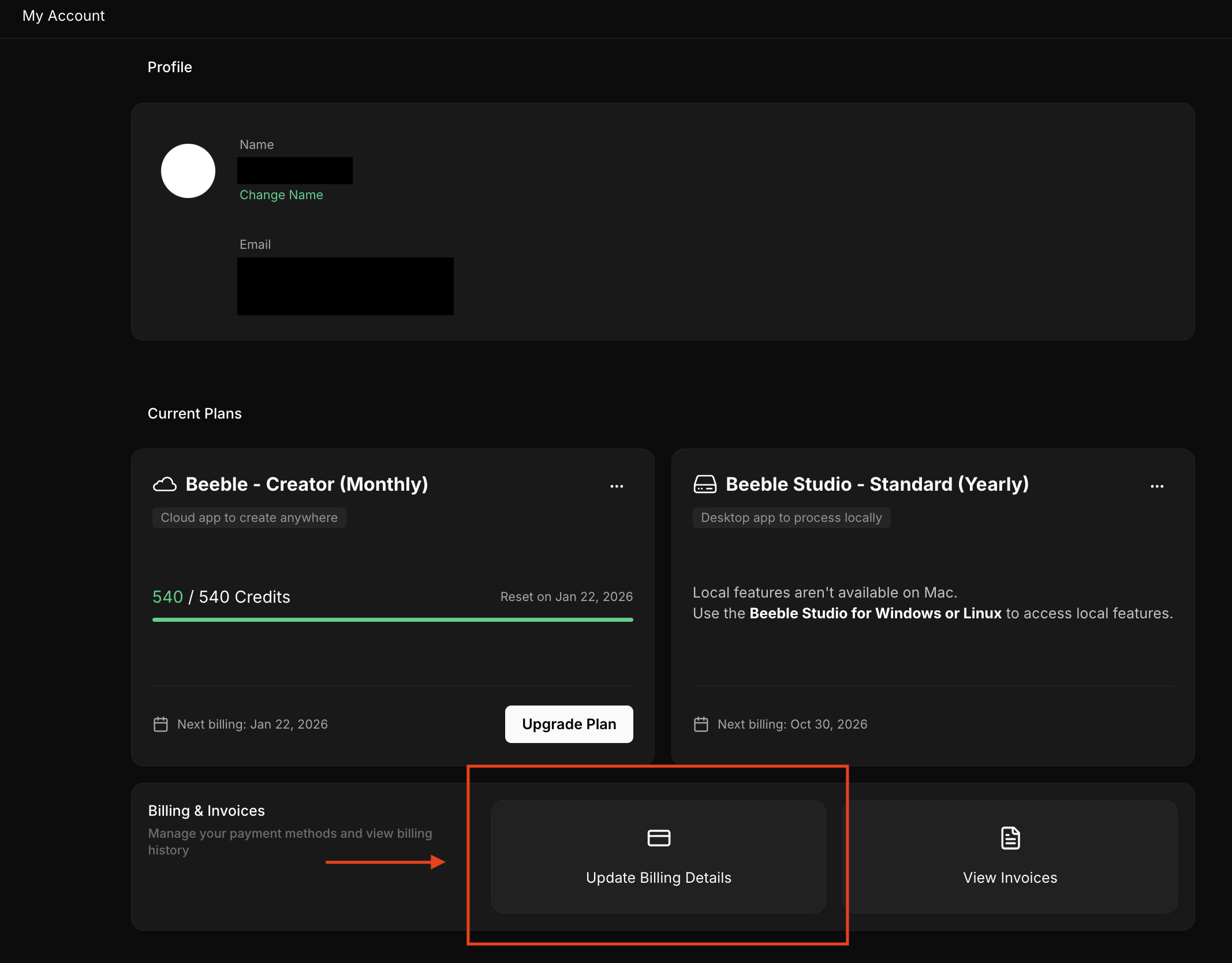
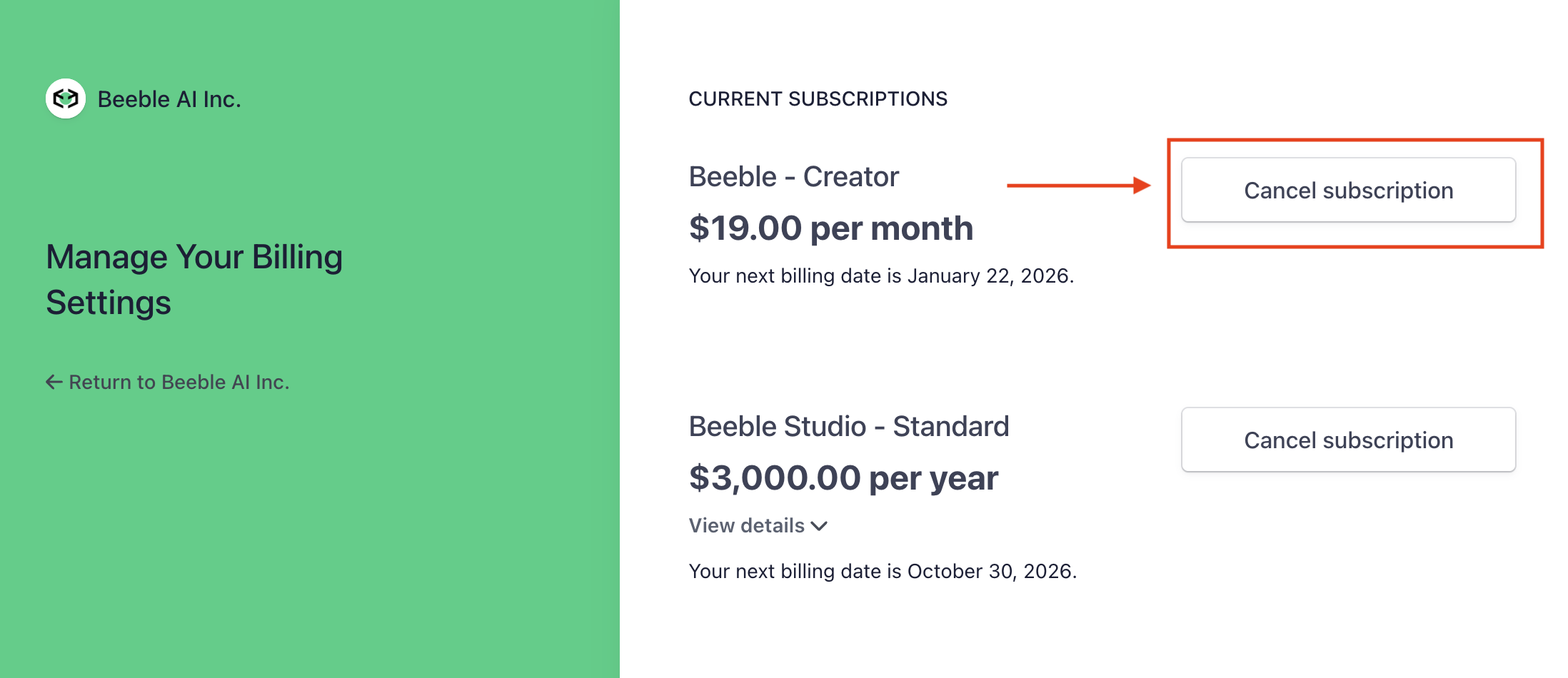
You can cancel your subscription at any time from your [Account Settings](https://app.beeble.ai/account).
1. Go to account setting page and click "Update Billing Details"
2. Find your plan and click "Cancel subscription"
3. Confirm cancellation by clicking "Cancel subscription"
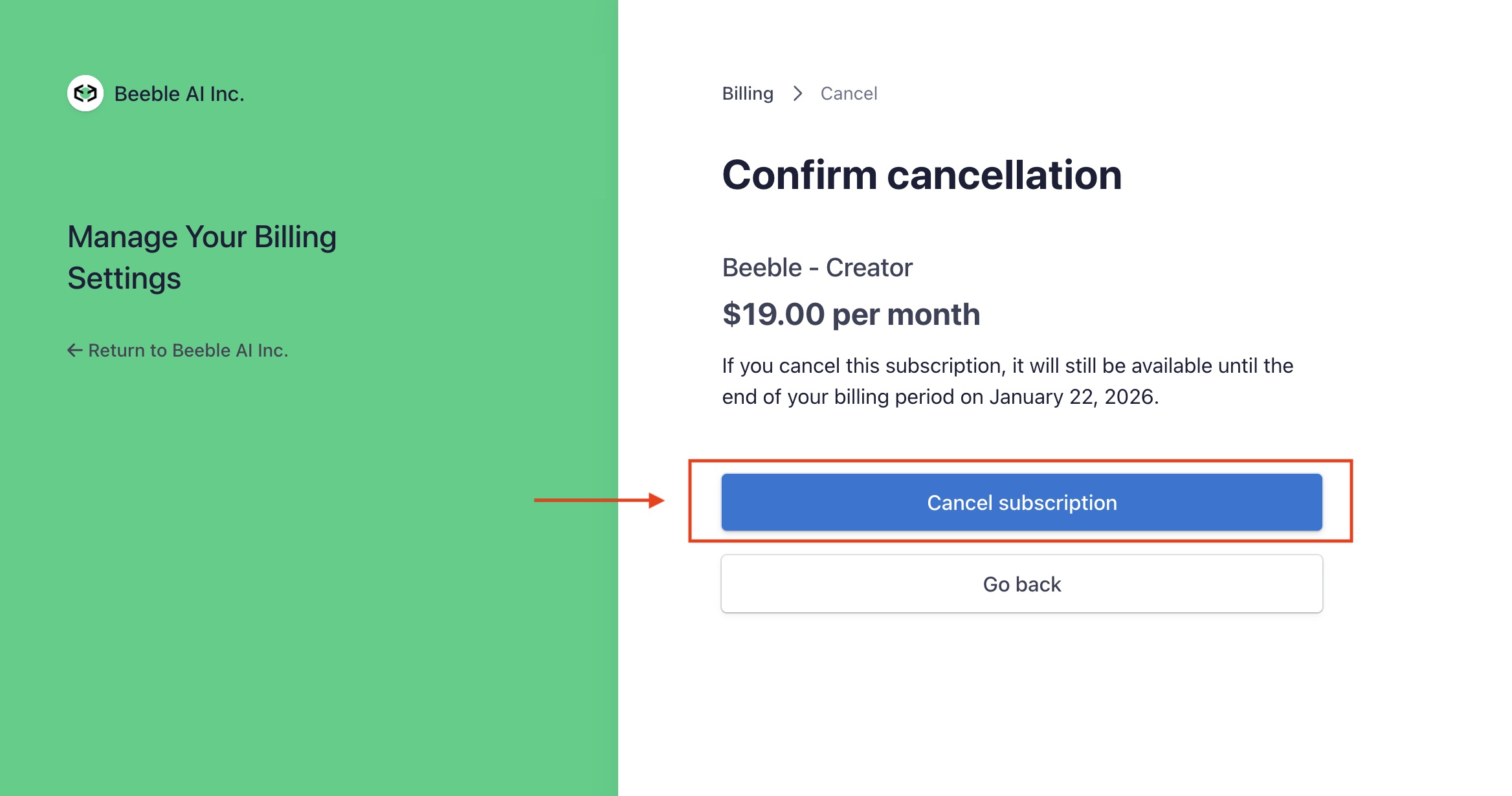
You will retain access to your plan features until the end of the current billing period.
You can update your invoice information from your [Account Settings](https://app.beeble.ai/account).
1. Go to account setting page and click "Update Billing Details"

2. Click "Update information"
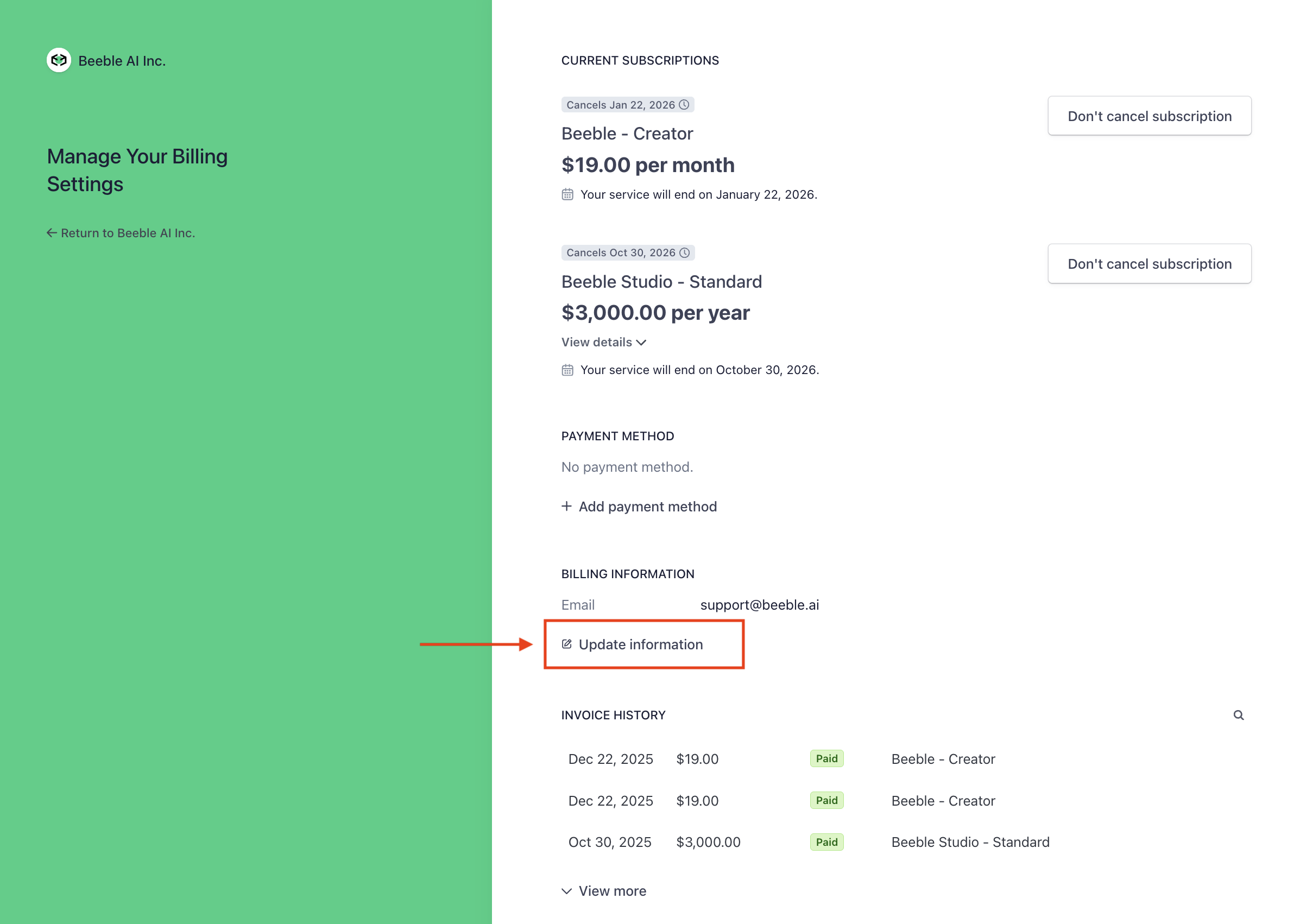
3. Update your billing information and click "Save"
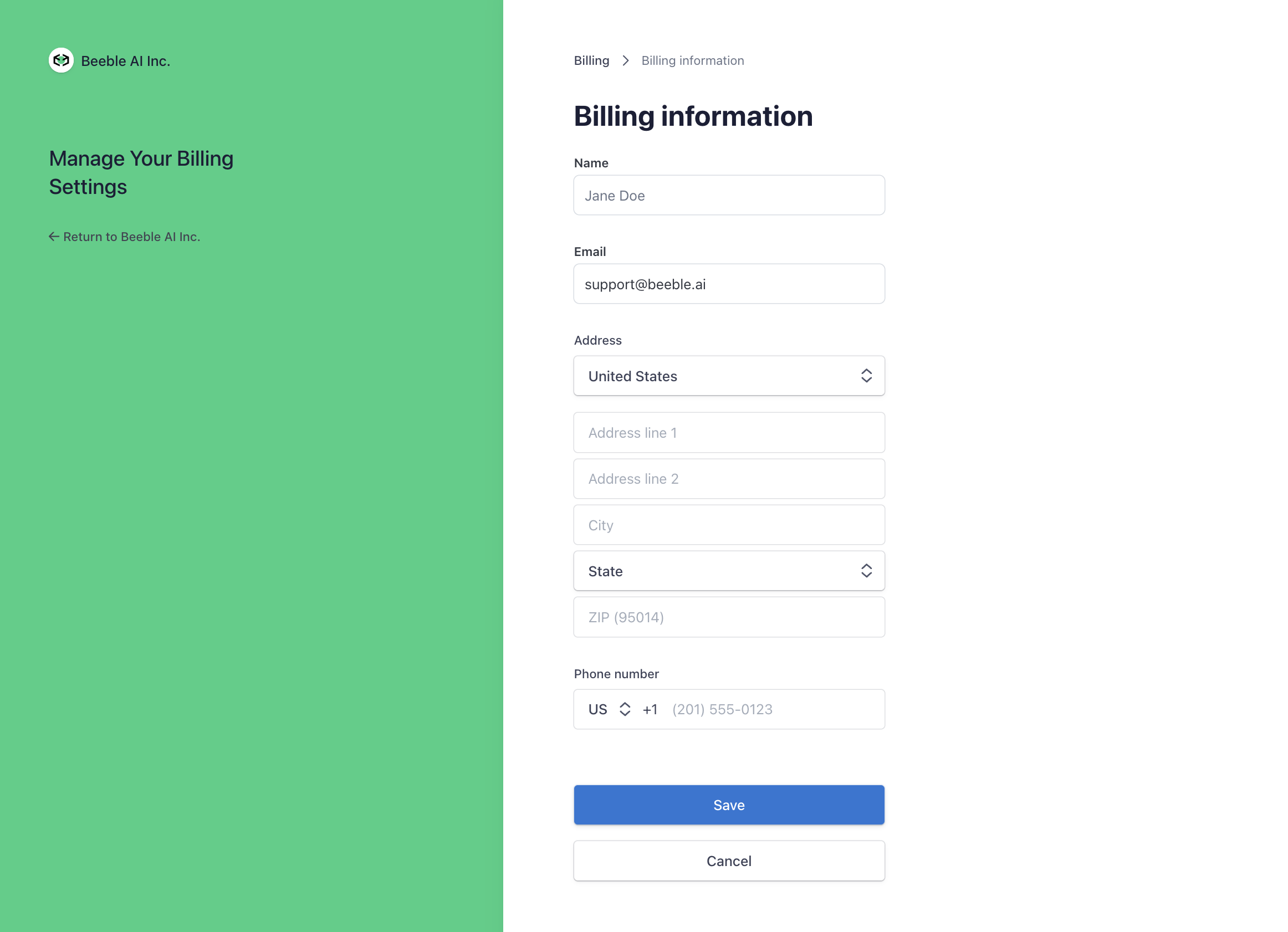
The changes will be applied from the next invoice.
***
## Still Have Questions?
Get help from our support team
Connect with the community