> ## Documentation Index
> Fetch the complete documentation index at: https://docs.beeble.ai/llms.txt
> Use this file to discover all available pages before exploring further.
# SwitchX
> Professional video-to-video AI generation tool for filmmakers and VFX artists
SwitchX is available exclusively on **Beeble (Cloud app)**. It is not
available in Beeble Studio.
**SwitchX** is a professional video-to-video AI generation tool designed for filmmakers, VFX artists, and creators. Unlike standard video-to-video models that hallucinate or alter the entire frame, SwitchX uses your original footage's pixels as direct control signals.
The core principle of SwitchX is simple: **Switch anything, keep what matters.**
* **Masked Areas:** Completely generated based on your prompts and reference images.
* **Unmasked Areas:** Retained from the original footage, but intelligently relit and restyled to blend seamlessly into the newly generated environment.
To get the best results from SwitchX, master two concepts: the **Alpha Mask** controls *what* gets changed, and the **Reference Image** controls *how* it looks.
***
## Alpha Masks
The alpha mask tells SwitchX exactly what to generate and what to preserve. SwitchX offers four masking modes:
| Mode | Description | Best For |
| ---------- | ------------------------------------------------------------------- | ------------------------------------------------------ |
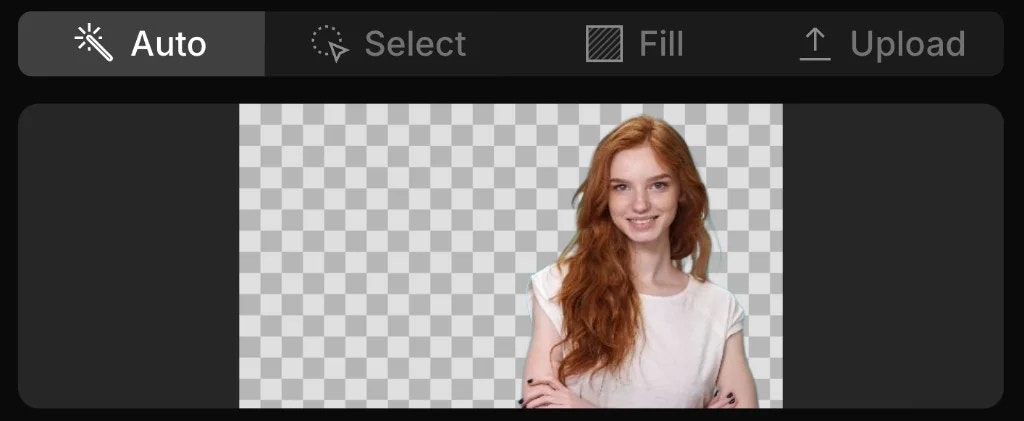
| **Auto** | Auto-detects and isolates the main subject. No manual input needed. | Background replacement, relighting, virtual production |
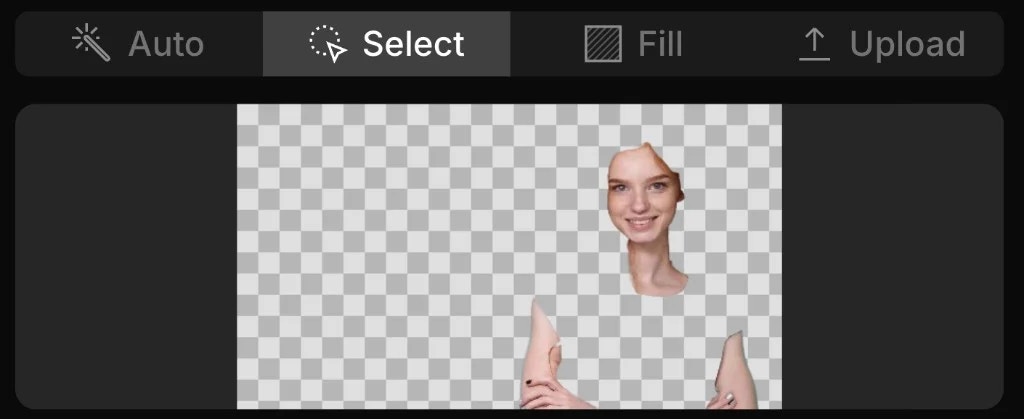
| **Select** | Manually select specific elements to keep or generate. | Targeted changes (e.g., new outfit, inpainting) |
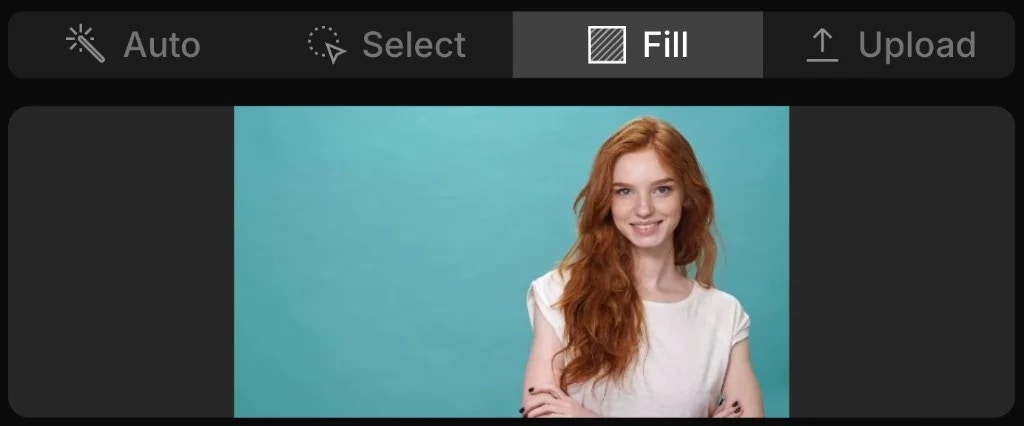
| **Fill** | Selects the entire frame. Keeps geometry, alters aesthetics. | Full-frame relighting or restyling |
| **Upload** | Upload a custom alpha matte from external software. | Pixel-perfect control from Nuke, After Effects, etc. |
### Auto Mode
**Best for:** Standard background replacements, relighting a subject, and
virtual production.
The engine automatically detects and isolates the main subject in your first frame, then propagates and tracks that mask throughout the rest of the video. No manual selection is required.
### Select Mode
**Best for:** Precision control, changing specific elements (e.g., changing
clothes while keeping the face and hands intact), and advanced inpainting.
You manually choose exactly which parts of the frame to mask. Only the selected areas will be generated — everything else stays untouched from your original footage.
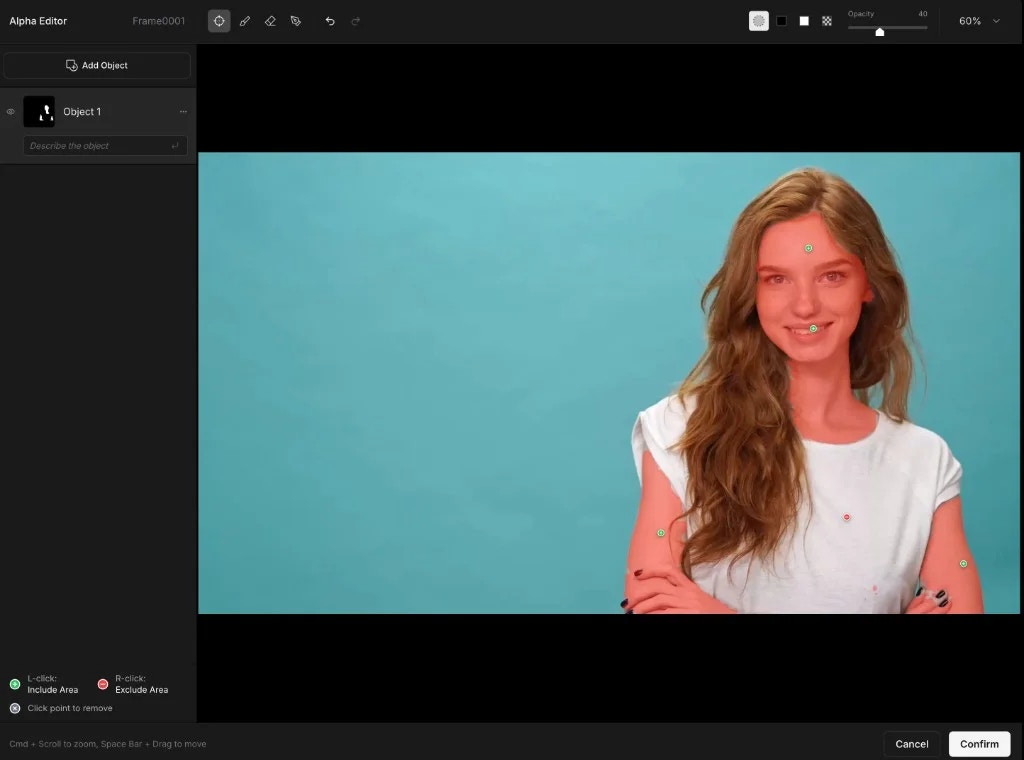
Powered by an interactive AI masking tool (SAM3), click to select specific objects on the first frame. The Alpha Editor lets you fine-tune your selections:
* **Multiple Selections:** Select multiple objects. For the cleanest results,
add distinct parts (like a face and a hand) as separate objects rather than
grouping them. - **Deselect:** Right-click to remove an unintended selection.
* **Invert:** Invert the mask of a specific object. For example, to turn a
hand into a robot arm, select the hand, click **Invert**, and the engine will
only generate within that area.
### Fill Mode
**Best for:** Complete scene relighting and restyling.
This mode selects the entire frame. Use Fill when you want to keep the original scene's geometry and composition intact but alter the overall lighting, mood, or artistic style.
### Upload Mode
**Best for:** VFX professionals using external compositing software.
Upload a precise alpha matte created in software like Nuke or After Effects. SwitchX reads the black-and-white alpha video pixel-by-pixel for absolute precision.
***
## Camera Tracking
SwitchX only sees the **unmasked** (foreground) region of your video. The masked area is completely hidden from the model, meaning SwitchX must infer all camera movement solely from the visible foreground pixels.
This has a direct impact on camera tracking quality:
* **Where it excels:** Shots where the foreground contains rich visual data to infer motion — such as a subject with complex movement, organic camera shake, or visible depth changes.
* **Where it struggles:** Simple, linear camera movements (like lateral trucking/panning shots) where the isolated foreground lacks sufficient parallax cues to estimate motion accurately.
Even if your original footage contains tracking markers in the background (e.g., on a green screen), SwitchX **cannot use them** if those markers fall within the masked region. Once an area is masked, it becomes 100% invisible to the AI model — regardless of the tracking data present in your source footage.
***
## Reference Images
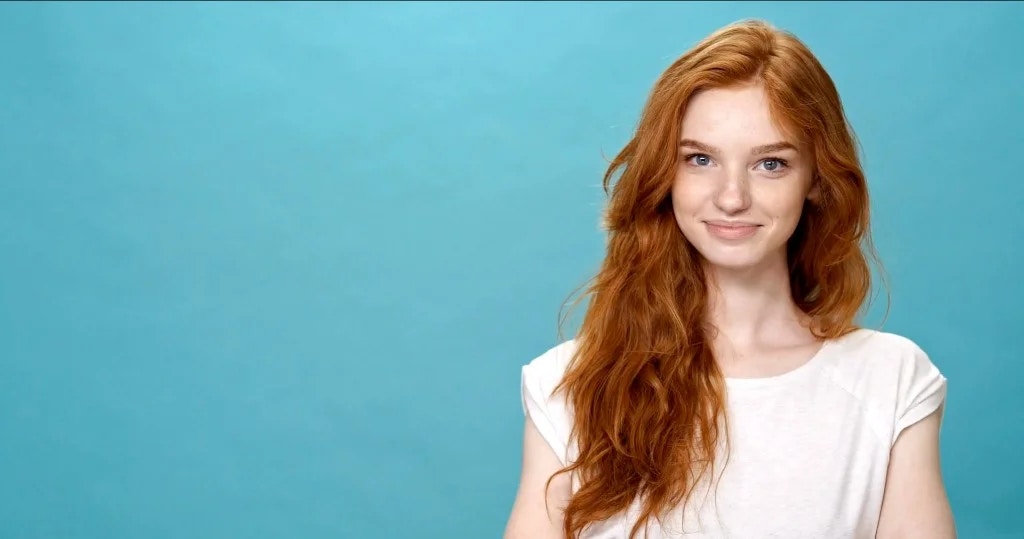
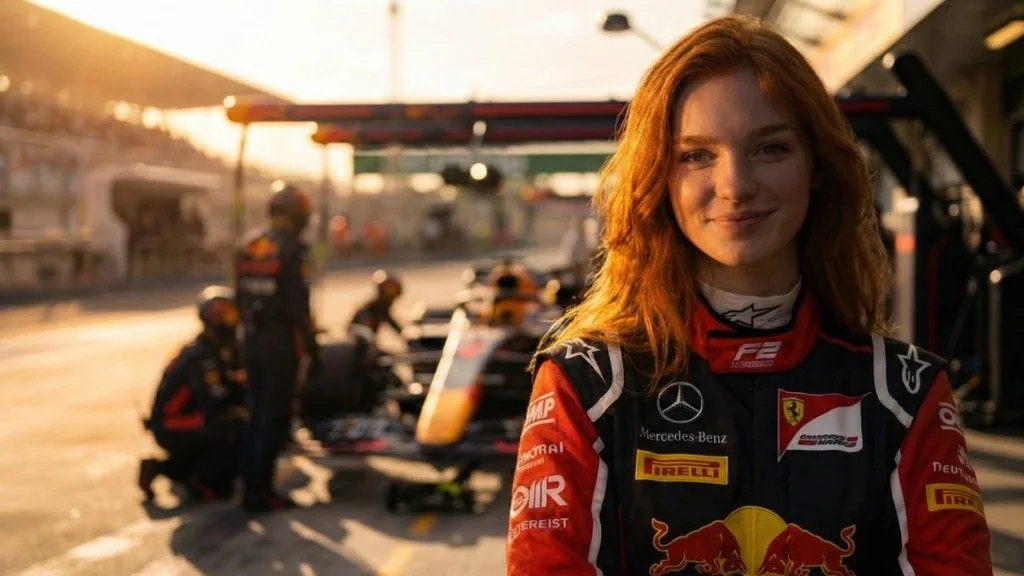
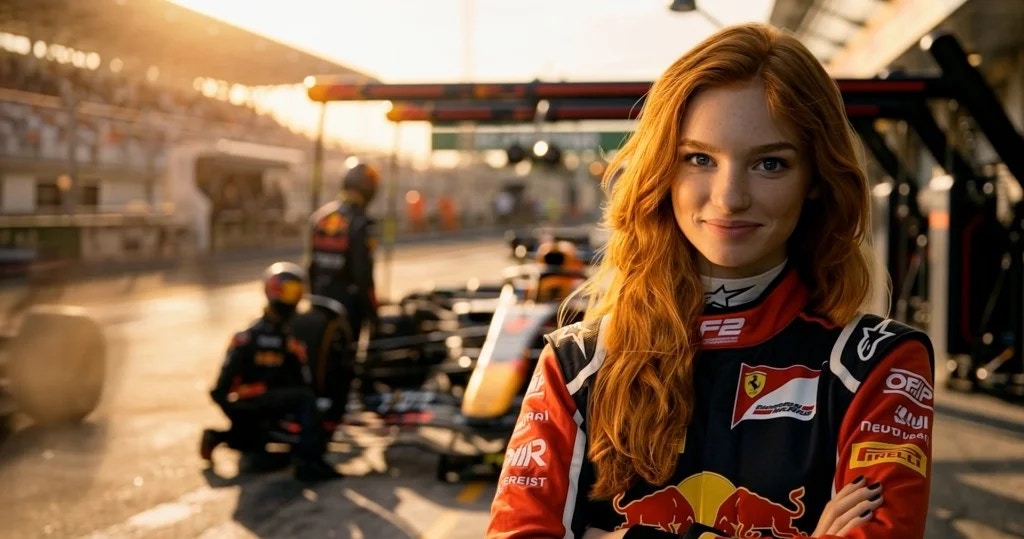
The reference image is your visual blueprint. It should contain all the details you want in your final video — background, lighting, mood, and costumes. SwitchX reads this image and uses it as a guide:
* **Masked areas:** SwitchX generates the background and content from the reference image into the masked region.
* **Unmasked areas:** SwitchX extracts the style and lighting from the reference image and applies it to your original footage, preserving the original pixels.
**Source**
**Reference Image**
**SwitchX Result**
### Imperfect References Are Fine
Your reference image doesn't need to perfectly match your source footage. For example, if you generate a reference with Nano Banana and the face changes — that's fine. SwitchX understands what your original pixels are and will only bring the lighting and style from the reference, applying it on top of your actual footage.
### Creating a Reference Image
You can upload any image, or use the built-in **Create with AI** tool. This sends your video's first frame to our Nano Banana or Flux models to generate a matching reference.
### Prompting Guidelines
**Avoid vague prompts.** Prompts like "Take me to heaven" will yield poor
results. AI requires precise art direction.
**Be highly specific.** Specify the environment, lighting, and mood — for
example: *"A dramatic cliff in Ireland, soft overcast lighting, highly
detailed props."*
If you are struggling with art direction, use a text AI like ChatGPT to generate five detailed prompt variations based on your core concept.
### The Professional Workflow (Iteration)
For pixel-perfect results, do not rely solely on the initial AI-generated image:
1. **Generate** a reference image using the **Create with AI** tool.
2. **Download** the generated image to your local machine.
3. **Refine** in Photoshop or similar — adjust color grading, add props, fix details.
4. **Re-upload** the edited image into SwitchX. The final video will strictly follow this tailored reference.
***
## Settings & Export
### Video Prompt
**Autopilot recommended.** Leave the Video Prompt setting on Autopilot — the
engine handles prompt engineering behind the scenes. Turn this off only if you
need to manually override an unexpected result.
### Resolution and Project Specs
| Setting | Details |
| ---------------- | ---------------- |
| **Resolution** | 720p or 1080p |
| **Aspect Ratio** | Always preserved |
| **Frame Rate** | Always preserved |
SwitchX will never distort your original aspect ratio or frame rate. The engine only resizes the shortest side of your video to match the chosen resolution, so you can iterate quickly without breaking your project specifications.
 ###
###  Powered by an interactive AI masking tool (SAM3), click to select specific objects on the first frame. The Alpha Editor lets you fine-tune your selections:
 ###
###  **Reference Image**
 **SwitchX Result**
 ### Imperfect References Are Fine
Your reference image doesn't need to perfectly match your source footage. For example, if you generate a reference with Nano Banana and the face changes — that's fine. SwitchX understands what your original pixels are and will only bring the lighting and style from the reference, applying it on top of your actual footage.
### Creating a Reference Image
You can upload any image, or use the built-in **Create with AI** tool. This sends your video's first frame to our Nano Banana or Flux models to generate a matching reference.
### Prompting Guidelines
### Imperfect References Are Fine
Your reference image doesn't need to perfectly match your source footage. For example, if you generate a reference with Nano Banana and the face changes — that's fine. SwitchX understands what your original pixels are and will only bring the lighting and style from the reference, applying it on top of your actual footage.
### Creating a Reference Image
You can upload any image, or use the built-in **Create with AI** tool. This sends your video's first frame to our Nano Banana or Flux models to generate a matching reference.
### Prompting Guidelines